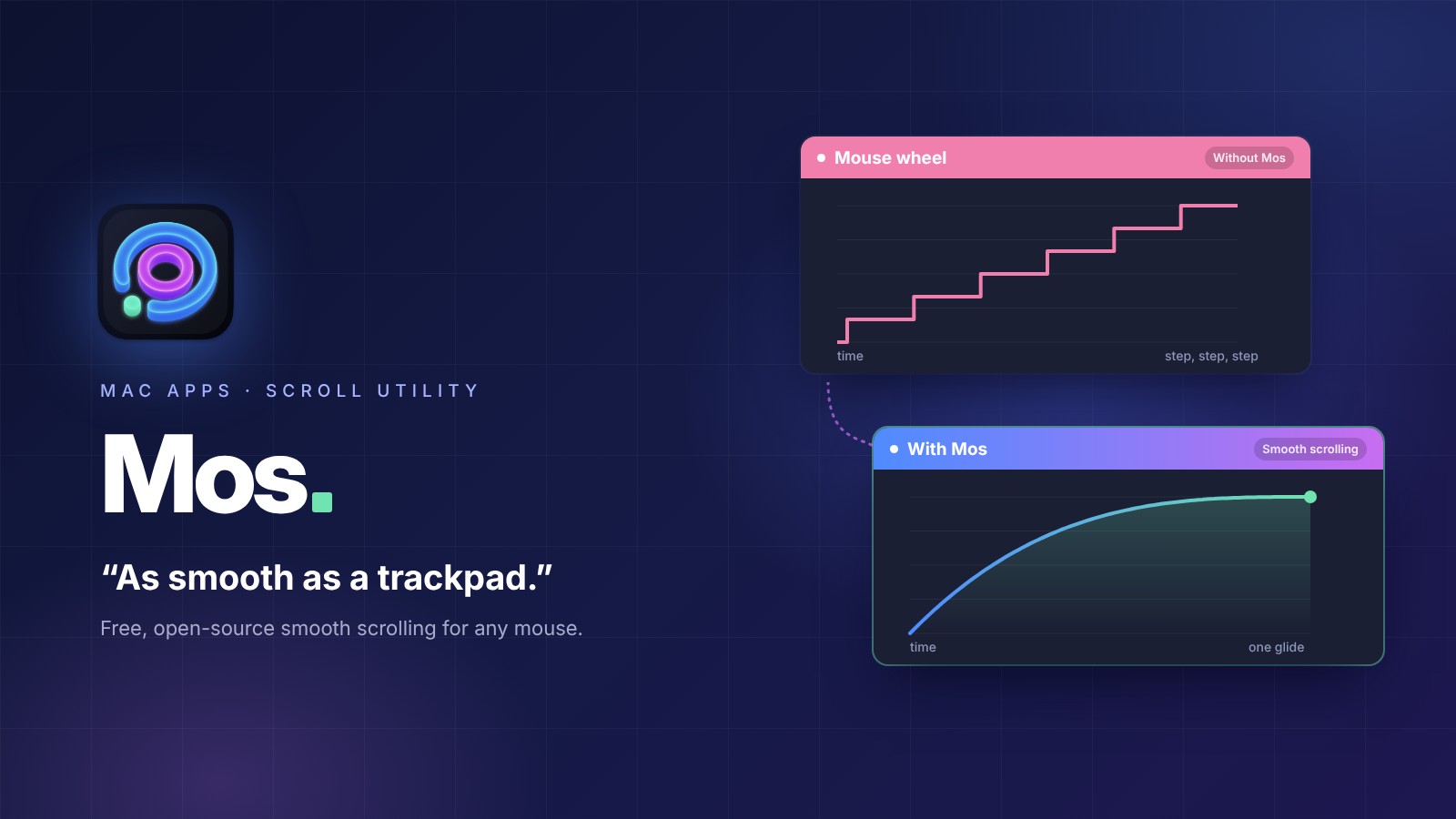
It is a common complaint: choppy mouse scrolling on Mac while the trackpad stays perfectly smooth. Here is exactly why that happens, and the free app that fixes it.
If you have ever switched from a MacBook trackpad to a mouse, you have probably noticed something odd. Scrolling with the trackpad feels buttery smooth, but the moment you connect a mouse — even a premium one — the same web page starts jumping down in small, jerky steps.
I ran into exactly this after connecting a Logitech mouse to my Mac. Pages that scrolled beautifully with two fingers on the trackpad suddenly felt cheap and stuttery with the mouse wheel. After poking around in a few settings menus, I found a free menu bar app called Mos that fixed it in under five minutes. Here is why the problem happens in the first place, and exactly how to set Mos up.
Update history
v4.3.0 beta (August 20, 2026, latest beta): Several Logitech mice on one receiver at once, plus fixes for sleep and external displays
The Real Cause of Choppy Mouse Scrolling on Mac
The root cause is not your mouse — it is how macOS reads scroll input. Apple’s trackpads and the Magic Mouse send a continuous, high-resolution stream of motion data, so the system can render scrolling as one smooth, decelerating motion, similar to a swipe on an iPhone.
A traditional scroll wheel works completely differently. Each click of the wheel sends a single “notch,” and macOS hands it to the app as a line-based value rather than a precise, pixel-level one. Apple’s developer documentation tells apps to multiply that value by the line height. So unless an app smooths it out on its own, a long web page jumps down a few lines at a time instead of gliding.
If the same mouse felt smoother on Windows, that is not because Windows fills in the gaps between notches. Windows also passes each notch to the app as a fixed value (120), and the app decides whether to animate it. Browsers like Chrome and Edge, for example, smooth out wheel scrolling themselves. macOS has no built-in setting that smooths wheel scrolling system-wide, so any mouse with a scroll wheel, whatever the brand, can feel choppy depending on the app. That is why the “choppy scrolling” complaint is so common among people who switch from Windows or add a mouse to a MacBook.
Meet Mos: A Free, Open-Source Fix
Mos is a free, open-source menu bar utility for macOS built specifically to fix choppy mouse scrolling on Mac. Instead of forwarding your mouse’s raw scroll notches directly to whatever app you are using, Mos intercepts them and reshapes them into smooth, physics-based motion — similar to the inertial scrolling you already get on a trackpad.
A few things make it worth installing:
- It is completely free and open-source — no ads, no subscription
- It runs quietly in the menu bar and uses almost no system resources
- It works with any standard USB or Bluetooth mouse, not just one brand
- It supports macOS 10.13 and later, so it works on most Macs still in daily use
On top of scroll smoothing, Mos can set horizontal and vertical scroll direction independently, apply different scroll behavior per app, and even remap mouse buttons — including extra Logitech buttons — to actions like Mission Control or switching desktops.
How to Install Mos
There are two ways to install it, and if you want to try new features before the official release, you can install the beta too. Pick the one that suits you.
Option 1: Homebrew
The fastest way if you already use Homebrew
brew install --cask mosPaste it into Terminal and press Return, and the install is done.
Option 2: Manual Download
Install from the app file, no Terminal needed
-
1Download the latest version
Click the button below to download the latest official version (4.2.1) right away.
Finding it on GitHub yourself
- On the Releases page, find the version marked Latest. Betas are marked Pre-release.
- Below that version, click Assets to open the file list.
- Click the zip file that starts with Mos.Versions to start the download.
- The two Source code files are the app’s source code, not the app, so you can skip them.
4.2.1 Latest▾ Assets 3Mos.Versions.4.2.1-20260531.1.zip11.6 MB← Click this fileSource code (zip)Source code (tar.gz)Not the app (skip these)A simple drawing of the Assets section on the GitHub Releases page.
-
2Move it to Applications
Open the downloaded file and drag Mos.app into your Applications folder.
-
3Launch Mos
Open Mos from Applications.
-
4Give Mos permission
When macOS asks for permission, open the path below and turn on the toggle next to Mos.
System Settings›Privacy & Security›Accessibility
 Mos
MosWhy does Mos need this? Mos needs to read scroll and button events system-wide, and without this permission the app cannot smooth anything.
Installing the Beta (Pre-release) Version
4.3.0-beta-20260820.1 · August 20, 2026
Mos posts beta builds on GitHub before each official release. You can see what changed in the beta under Update History below. The latest official version is 4.2.1.
① With Homebrew
The beta has its own cask, mos@beta.
brew install --cask mos@beta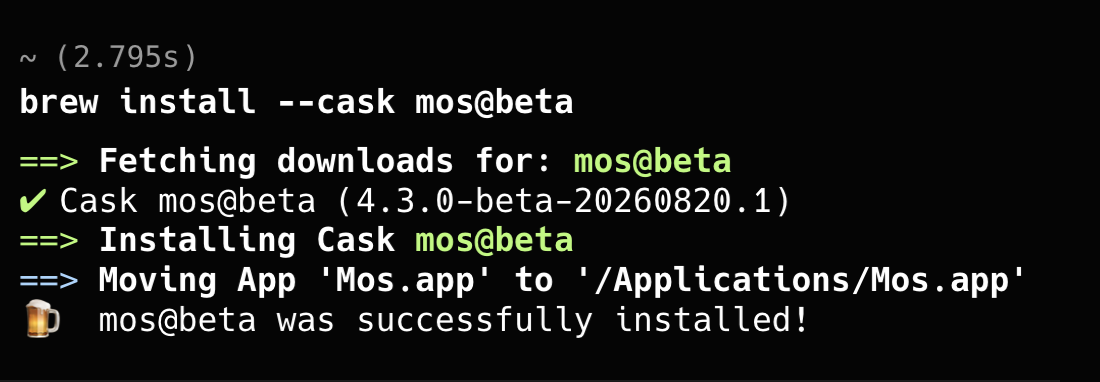
When a newer beta comes out, you can update with this command.
brew upgrade --cask mos@beta② Manual download
Click the button below to download the 4.3.0 beta right away. Then follow Option 2 from step 2.
Finding it on GitHub yourself
- On the Releases page, find the version marked Latest. Betas are marked Pre-release.
- Below that version, click Assets to open the file list.
- Click the zip file that starts with Mos.Versions to start the download.
- The two Source code files are the app’s source code, not the app, so you can skip them.
A simple drawing of the Assets section on the GitHub Releases page.
③ If you already use Mos
Open the Updates tab in Mos Preferences, turn on Including beta version and click Check Now to update to the beta right inside the app.
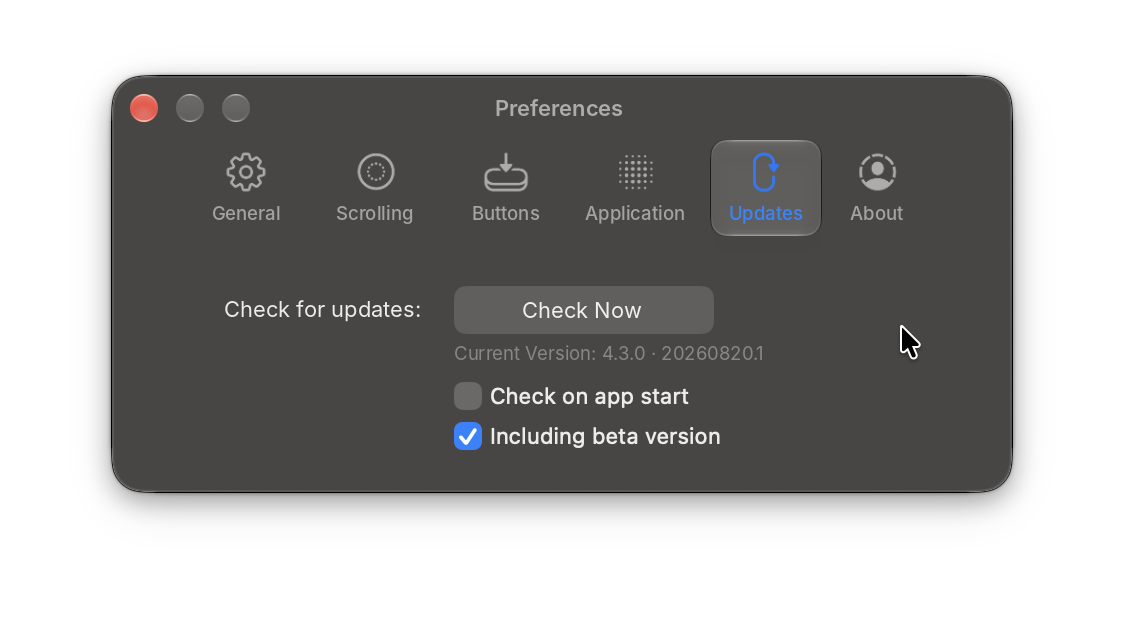
I installed the 4.3.0 beta with Homebrew, and when I clicked Check Now afterward, Mos told me that 4.3.0 was the newest version.
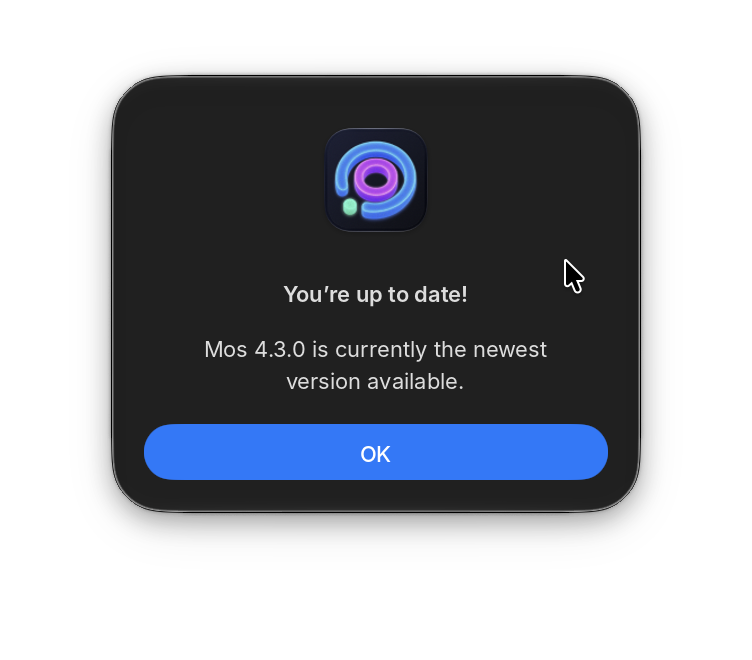
Keep in mind that a beta is a pre-release version, published before the official release.
Recommended Settings
Once Mos is running, click its icon in the menu bar, open Preferences, and go to the Scrolling tab. Turn on Enable seamless scrolling first — that is the setting that actually does the smoothing.
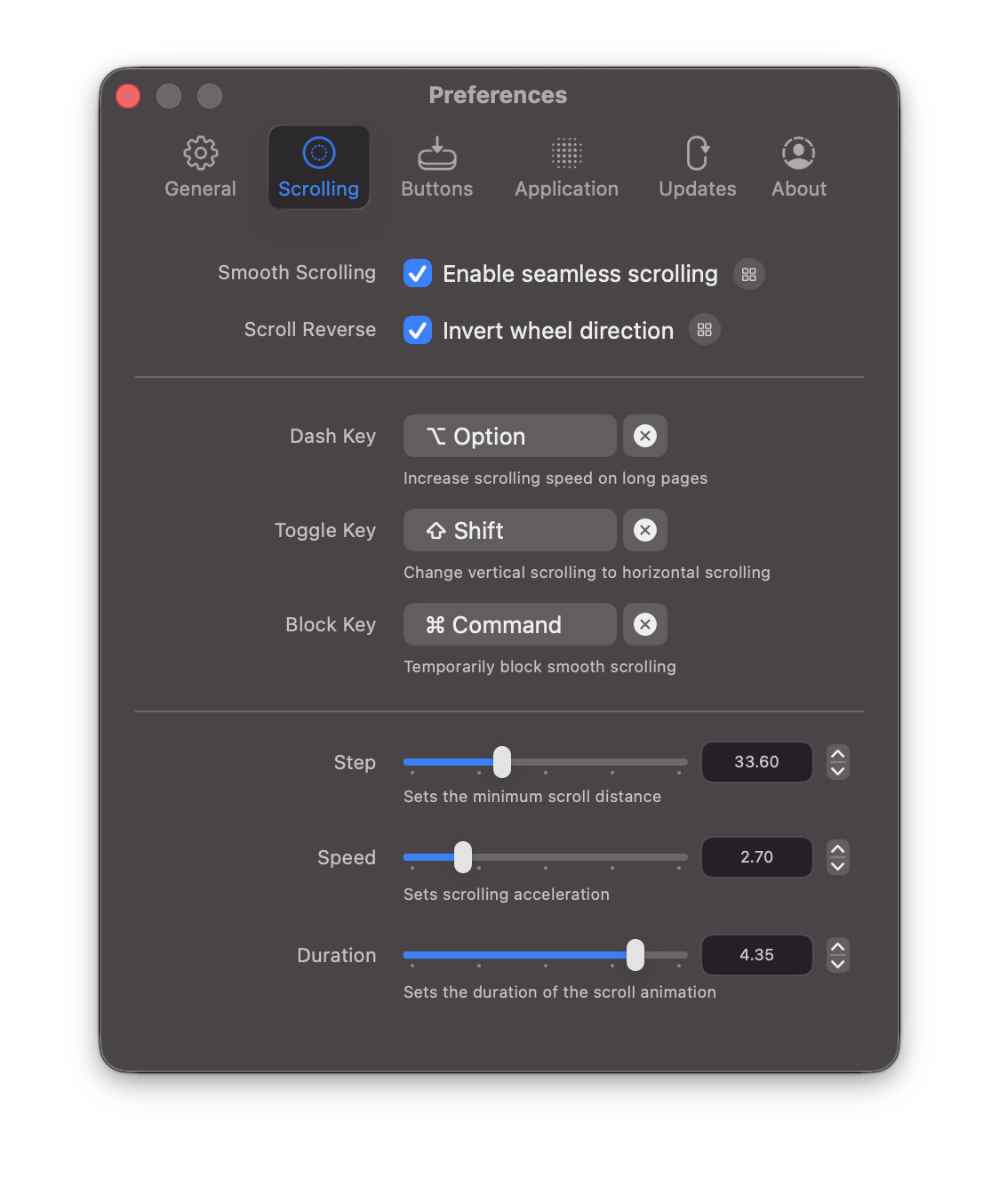
From there, three sliders control the feel:
- Step — the minimum distance each scroll motion covers
- Speed — how quickly scrolling accelerates as you keep spinning the wheel
- Duration — how long the “glide” lasts after you stop scrolling
If you are not sure where to start, try the settings I use with my Logitech MX Master 4: Step 10, Speed 3 and Duration 5. Every mouse wheel feels a little different, so if scrolling feels too “floaty,” nudge Duration down a little at a time.
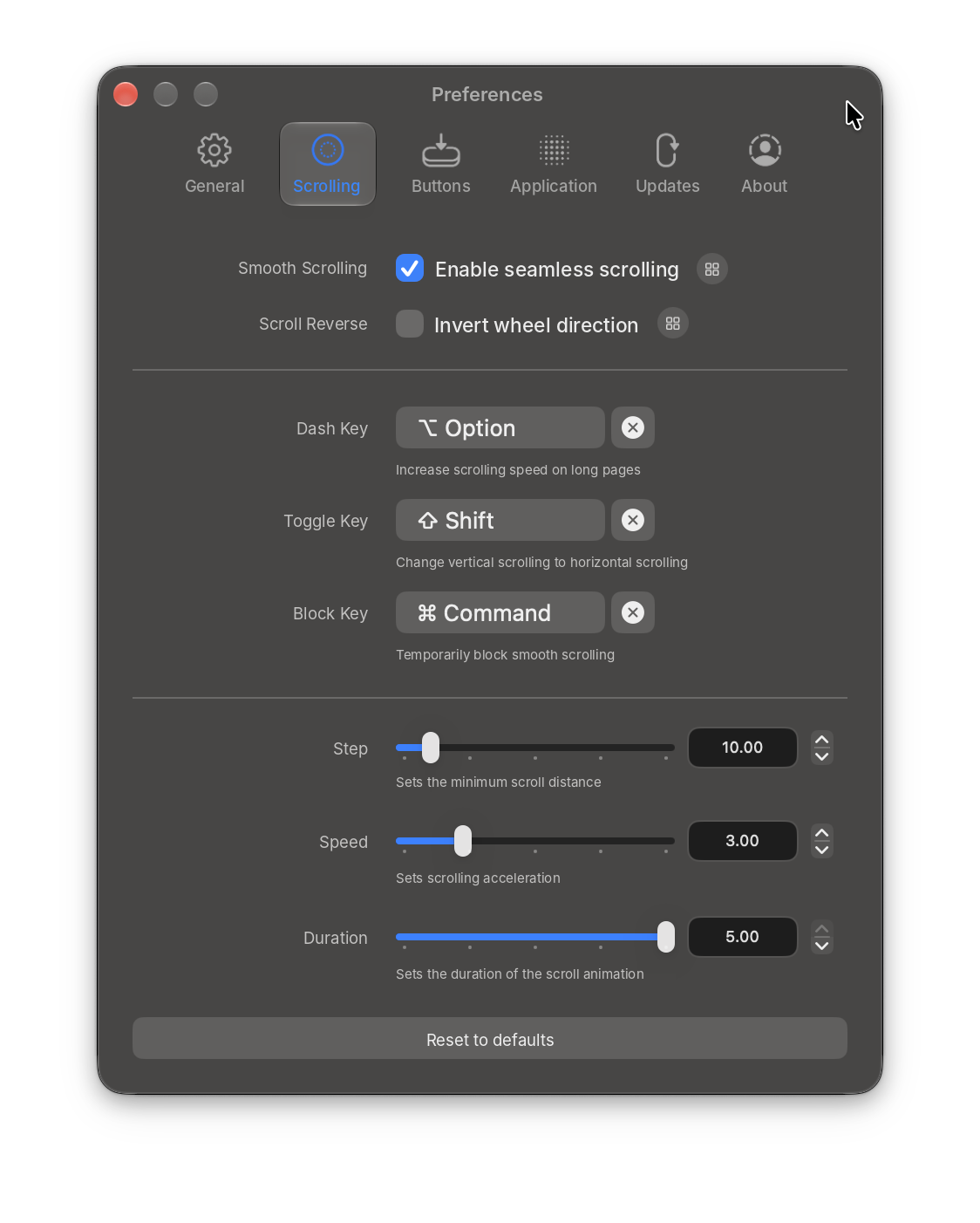
I use these settings because they feel the closest to the smooth motion of a trackpad.
Bonus: Per-App Settings and Button Remapping
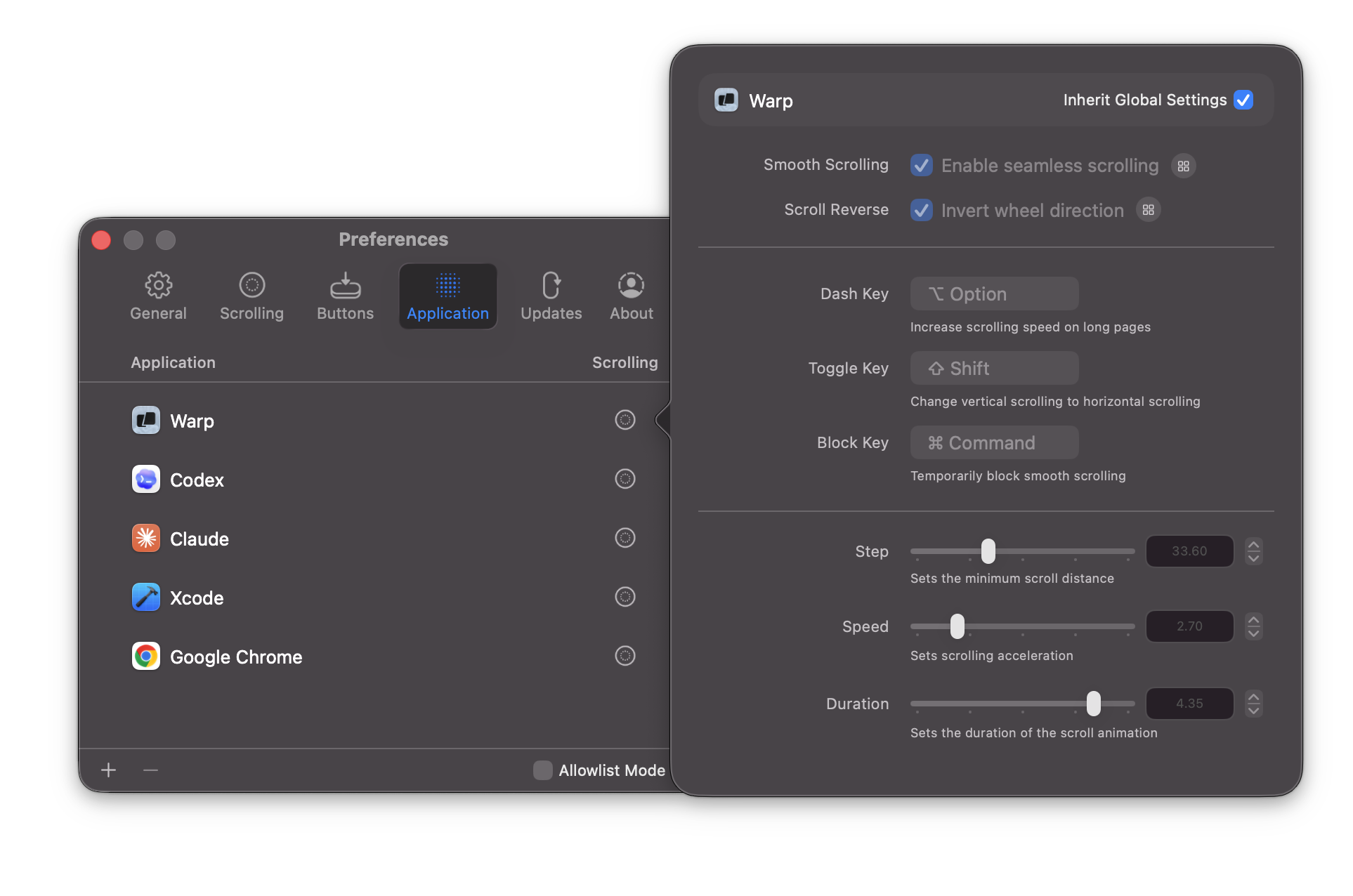
Not every app needs the same scroll feel. In the Application tab, you can add specific apps — a code editor, a PDF reader, a chat app — and give each one its own scroll settings, or just inherit your global settings. This is handy if you want faster scrolling in a browser but more precise, slower scrolling in a spreadsheet.
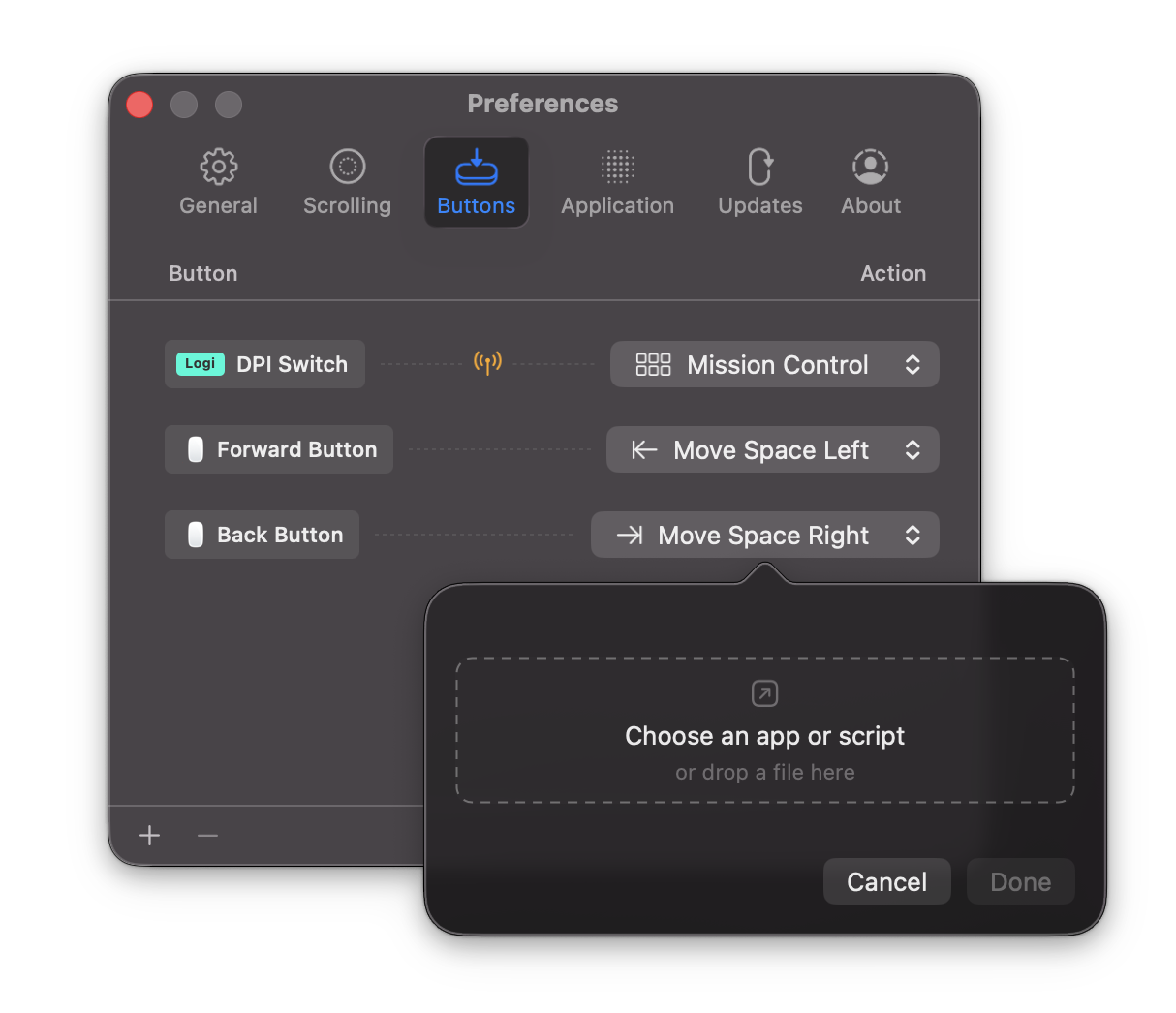
If your mouse has extra buttons — like the DPI switch or side buttons common on Logitech mice — the Buttons tab lets you bind them to shortcuts such as Mission Control, moving between desktop Spaces, or opening a specific app. Mos also has direct support for Logitech’s HID++ protocol, so DPI and gesture buttons are recognized instead of being ignored. Starting with the 4.3.0 beta, several Logitech mice connected to the same receiver can use their button features at the same time (details below).
Update History
Mos keeps getting updates, so I have listed what changed in each version, newest first. Click a version to open or close it.
✦ v4.3.0 betaAugust 20, 2026Latest betaSeveral Logitech mice at once, plus stability fixes
The Mos 4.3.0 beta arrived on GitHub as a pre-release on August 20, 2026. It lets you use several Logitech mice together and fixes problems that showed up after waking from sleep or reconnecting an external display. You can find how to install it in Installing the Beta above.
Check before you upgrade: For apps in the Application tab with Inherit Global Settings turned off, smooth scrolling and reverse direction settings now apply on their own and are no longer limited by the global switches. Take a quick look at your per-app settings after upgrading.
New Features
- Several Logitech mice at once: Multiple Logitech mice on the same receiver can now use their button features at the same time. There is no need to switch manually, so you can just use whichever mouse is in your hand.
- Thai: The app is now available in Thai.
Improvements
- The button-binding panel uses shorter wording for a more compact layout.
- Lots of internal refinements make Mos run more smoothly and reliably.
Fixes
- Button features not working after a Logitech mouse wakes from sleep
- The left mouse button occasionally getting stuck in apps like After Effects
- Per-app settings not taking effect while the global switch is off
- Scrolling becoming laggy after an external display wakes or reconnects
- Scrolling breaking entirely when preferences go missing in rare cases
- Apps with emoji in their names displaying incorrectly in the list
- Side buttons triggering both their binding and a native system shortcut like Mission Control at the same time
- Logitech keyboards being kept awake and unable to sleep
- Several stability issues during long-running sessions
To fix the side-button conflict, this version changes how Mos listens for button input. If you use Mos alongside button-mapping tools like BetterTouchTool and run into conflicts, the developer asks you to report it through a GitHub issue.
Worth the Five Minutes
The trackpad-vs-mouse scrolling gap is one of those small annoyances that is easy to just live with — until you realize it is a five-minute fix. Mos is free, open-source, and light enough to leave running in the background all the time. Set it up once, and you will probably forget choppy mouse scrolling on Mac was ever a problem. More small Mac utilities worth your time are collected in Mac Apps.
When 4.3.0 is officially released, I will update this post again.