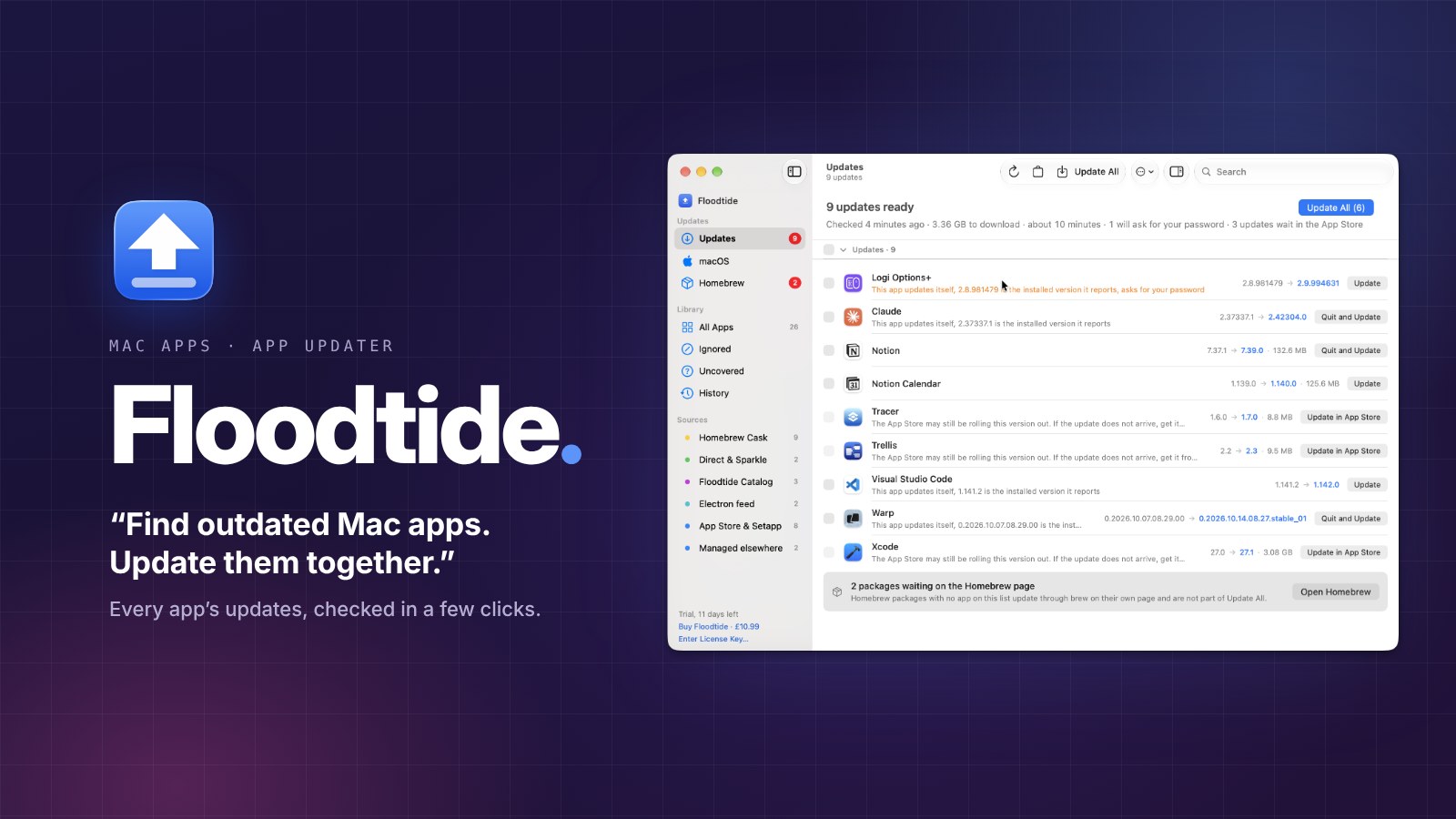
I have plenty of apps on my Mac that I don’t open every day, and those are exactly the ones whose updates I tend to miss. Floodtide fixes that. I open it, and a few clicks later I know which apps are out of date.
In this post, I’ll walk through what Floodtide for Mac is, the parts I liked most, what you get for free, and what’s worth knowing before you install it.
What Is Floodtide for Mac?
Floodtide is a Mac app updater made by bhopstudio, a one-person studio. It finds the apps on your Mac that have a newer version and lets you update them together.
Find outdated Mac apps. Update them together.
Floodtide official website
Instead of relying on one big database, Floodtide asks each app’s own update source, such as the developer’s Sparkle feed, Homebrew or the Mac App Store. The developer also presents it as a replacement for MacUpdater, whose sales and support ended on January 1, 2026.
First Impression: Clean and Easy to Follow
I’ve only used the free trial so far, and the first thing I noticed was how clean the interface is. There’s nothing extra on screen, and I could tell what to do without reading any instructions.
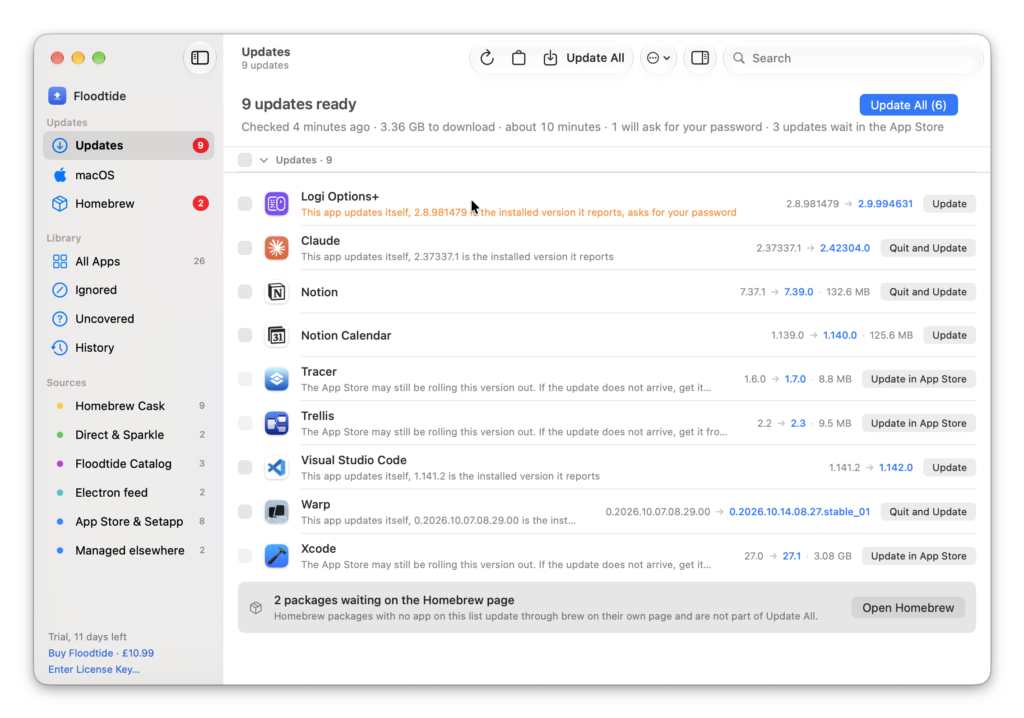
The top of the Updates list sums everything up in one line: how many updates are ready, how much there is to download, roughly how long it will take, how many will ask for your password and how many wait in the App Store.
Checking for Updates Takes a Few Clicks
This is my favorite part. Some apps stay installed on my Mac but only get opened once in a while, so I easily miss their updates. With Floodtide, I just open the app, and after a few clicks I can see everything that needs updating. It doesn’t make things complicated, and it does exactly what it’s for.
When you click Update All, Floodtide updates every app it can handle at once and shows each one’s progress on its row, with the download speed and the time left. Apps waiting their turn are marked as queued.
If you’d rather not open it at all, Floodtide can also check on a schedule. In Settings › General, you can choose every hour, every 3, 6 or 12 hours, daily, weekly or once a day at a set time. Daily is the default, and the number of waiting updates shows in the Menu Bar and the Dock.
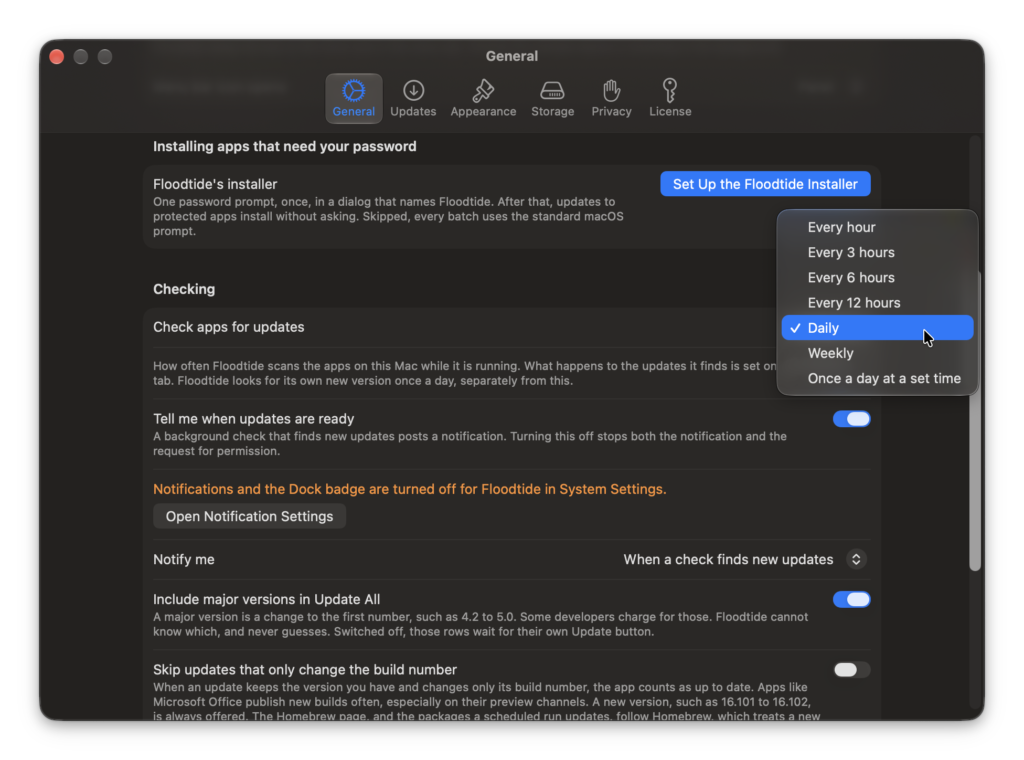
The same page has two more settings worth a look. Set Up the Floodtide Installer asks for your password once, and after that, updates to protected apps install without asking every time. Include major versions in Update All decides whether big jumps, like 4.2 to 5.0, join Update All. Some developers charge for those, so you can switch it off and update them one by one.
It Tells You How Each App Updates
Another thing I really liked: you can update apps right inside Floodtide, and the ones that update themselves or need a trip to the App Store are pointed out separately. I never had to guess what to do next.
You can see this in the first screenshot above. Apps like Logi Options+ and Claude are marked This app updates itself, and if an app is open, the button changes to Quit and Update. Tracer, Trellis and Xcode show Update in App Store, with a note that the App Store may still be rolling the new version out. That’s why Update All counted 6 of the 9 updates on my Mac.
The sidebar groups your apps by where their updates come from: Homebrew Cask, Direct & Sparkle, Floodtide Catalog, Electron feed, App Store & Setapp and Managed elsewhere. According to the developer, Floodtide also reads GitHub Releases, and you can point any app at its own Sparkle feed or GitHub repository.
Since version 1.3.0, many Mac App Store apps update right inside Floodtide, with no App Store window and no password. A few still go to the App Store, such as apps larger than about 675 MB, iPhone and iPad apps on an Apple silicon Mac and apps bought with a different Apple Account. Apps that Setapp or Microsoft AutoUpdate look after are labeled as theirs instead of being touched.
Safety Checks Before Anything Is Replaced
An updater replaces apps in your Applications folder, so trust matters. As the video above shows, Floodtide checks each download’s signature and Gatekeeper verdict before replacing the app. The new version must also come from the same Apple developer team as the app you already have, and a build signed less securely than your current one is refused.
It also holds back updates that look wrong and says why on the row. Examples include a version number that doesn’t add up, a release that needs a newer macOS than yours, and a different app that happens to share the name, such as Bartender 7 offered to Bartender 6 users.
A Page of Its Own for Homebrew
If you use Homebrew, Floodtide gives it a separate page. You can browse installed casks, formulae and tap packages, update them with Update All, find new packages, and check the Health, Services and Adopt tabs. Updates for these run through Homebrew itself, and packages that don’t belong to an app on the Updates list stay on this page instead of joining the main Update All.
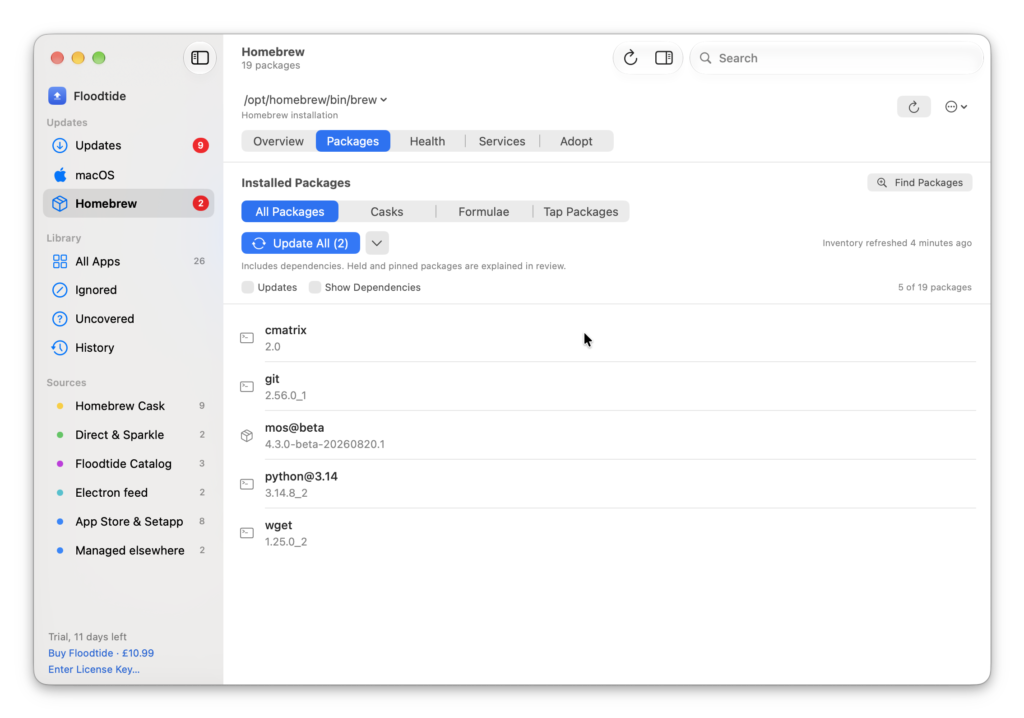
Two handy tools live here too. Adopt into Homebrew lets Homebrew take over an app you installed by hand, and Stop Using Homebrew does the reverse without touching the app.
After the Updates Are Done
When everything is current, the Updates page simply says You are all caught up, with how many apps were scanned. The macOS page lists system updates from Software Update so you don’t miss one, but Floodtide never installs macOS itself.
Click any app in All Apps and its details show where it was installed from, its update history and actions like Rescan This App, Show in Finder, Snooze and Ignore This App. If an update causes trouble, Undo Last Update puts the previous version back from the backup Floodtide kept.
Backups are kept for three days, a week, two weeks or a month, in a folder you choose. Floodtide follows your Mac’s Light or Dark setting, and since version 1.4.7 you can also pick one yourself.
More Features Worth Knowing
- Automatic installing: Off by default. When you turn it on, it runs the same checks as a manual update, and open apps are updated after you quit them.
- Notifications: After every check, or once a week. Quiet hours turn off notifications and automatic updates during the hours you choose.
- Betas: Off by default. You can choose Stable or Beta for each app.
- Audio plug-ins and screen savers: Tracks AU, VST, VST3, CLAP and AAX plug-ins and screen savers too.
- Coming from MacUpdater: Since 1.4.4, File › Import from MacUpdater brings over your ignore list.
- Languages: English, German, Spanish and, since 1.4.8, French.
Free vs. Paid
Floodtide starts with a full 14-day trial, with no card or account needed. The days left show at the bottom of the sidebar. After the trial, scanning stays free, so you can keep checking which apps are out of date. Buying a license unlocks installing updates from inside Floodtide.
A license is a one-time purchase that covers up to 3 Macs and includes every 1.x update. There’s also an optional add-on called the Tide, a yearly subscription that adds apps researched by hand each week. Floodtide works the same without it.
Privacy
Floodtide shares a list of the apps and versions on your Mac once a day, with no identifier, so the developer can cover more apps. This is on by default, the app tells you on first launch, and you can turn it off in Settings › Privacy. Usage analytics are off unless you switch them on. When an app sits in a protected folder, the password prompt comes from macOS, and Floodtide never sees or stores your password.
Wrapping Up
Floodtide does one job and keeps it simple. For apps I don’t open often, being able to check every update in a few clicks is a big help, and I liked that it clearly tells me which apps update on their own and which need the App Store.
If you enjoy small Mac utilities like this, you might also like my reviews of Tracer and Trellis, which both showed up in my Floodtide list, and you can find more picks in Mac Apps.
Before You Install
A few things are worth checking first:
- Requirements: macOS 13 Ventura or later, on Apple silicon or Intel Macs.
- Latest version: 1.4.8, released in October 2026.
- Size: 38.1 MB.
- Languages: English, German, Spanish and French. There’s no Korean or Japanese yet.
- License: One license covers up to 3 Macs. You can free a seat from a Mac you’ve sold or erased on your account page.
- Floodtide’s installer: Setting it up once in Settings › General lets protected apps update without a password prompt every time. It’s also needed to update Mac App Store apps inside Floodtide.
- Not on the App Store: Floodtide is available from the developer’s website and Homebrew.
How to Download and Install Floodtide
There are two ways to install Floodtide. Pick the one that suits you.
It’s $14.99 in the US and €12.99 in Europe. After the trial, scanning stays free and only installing locks. The Tide add-on is £9.99 a year. If it isn’t for you, email the developer within 14 days of buying for a refund.
Option 1: Homebrew
The fastest way if you already use Homebrew
brew install --cask realm9758/floodtide/floodtideThis installs Floodtide from the developer’s own Homebrew tap. Floodtide keeps itself up to date after that.
Option 2: Download From the Website
Install from the app file, no Terminal needed
-
1Download Floodtide
Click the button below to download Floodtide from the official website.
-
2Move it to Applications
Open the downloaded file and drag Floodtide into your Applications folder.
-
3Open Floodtide and run a check
Your free trial starts as soon as you open the app. Floodtide scans your apps and lists the ones with updates.
-
4Allow Full Disk Access if asked
If Floodtide asks for it, open this location and turn on Floodtide.
System Settings›Privacy & Security›Full Disk Access
Why Full Disk Access? According to the developer, Floodtide uses it to read version information from the apps in your Applications folder.