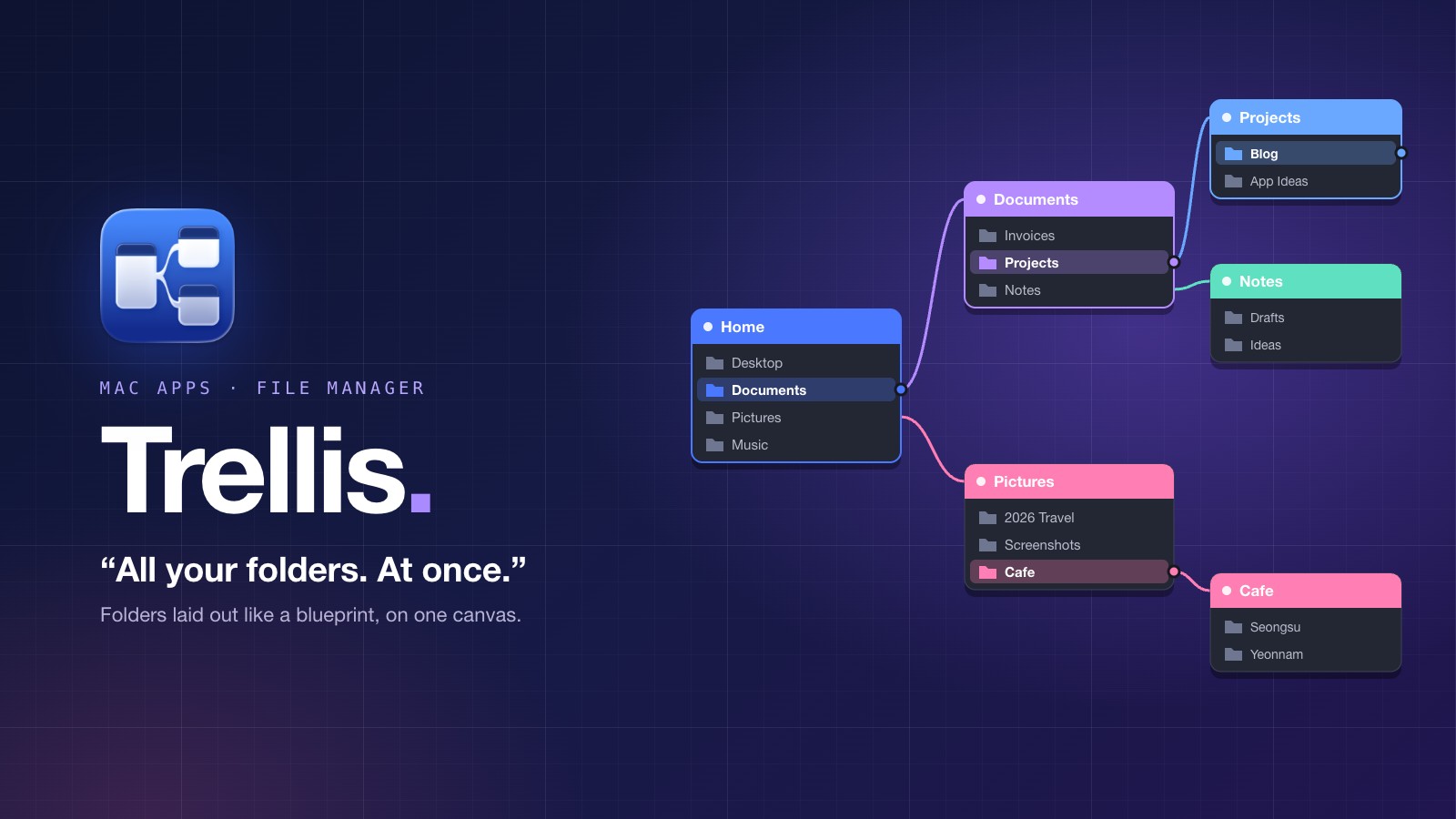
The first time I saw Trellis for Mac, it reminded me of the Blueprint editor in Unreal Engine: boxes on a grid, lines running between them, and everything laid out where you can see it. It looked clean and intuitive, and I liked it right away. But Trellis isn’t a node editor. It’s a file manager, and those boxes are your folders.
In this post, I’ll walk through what Trellis is, the parts that won me over, and what’s worth knowing before you install it.
Update history
v2.3 (October 15, 2026, latest): Arrange by hand, Open as Root and reconnecting network shares
v2.2 (October 6, 2026): Shortcut overview, workspaces and smooth scroll zoom
v2.1 (October 1, 2026): Space bar panning and Cmd⌘ + scroll zoom
What Is Trellis for Mac?
Trellis is a macOS file manager made by developer Stefan Ramage. Its tagline sums it up in four words: “All your folders. At once.” Instead of opening a separate Finder window or tab for every folder, Trellis puts each folder you open onto a single canvas.
Trellis shows folders as panes on a canvas, joined by lines from a folder to its child. Open a folder and you keep the last one: it sits right next to it, and the way there is visible.
Trellis official website
That one idea is the heart of the app, and it’s exactly what caught my eye.
First Impression: It Looks Like a Blueprint
Unreal Engine is a game engine, and its Blueprint editor lets you build logic visually instead of writing code. Nodes sit on a grid, wires connect them, and you can follow the whole flow just by looking at it. My first thought when I saw Trellis was, “This is Blueprint, but for folders.” Panes sit on the canvas, and a line ties each folder to the one it came from. It’s a clean, intuitive way to look at your files, and I loved how it looks in use.
Folders That Branch Like a Tree
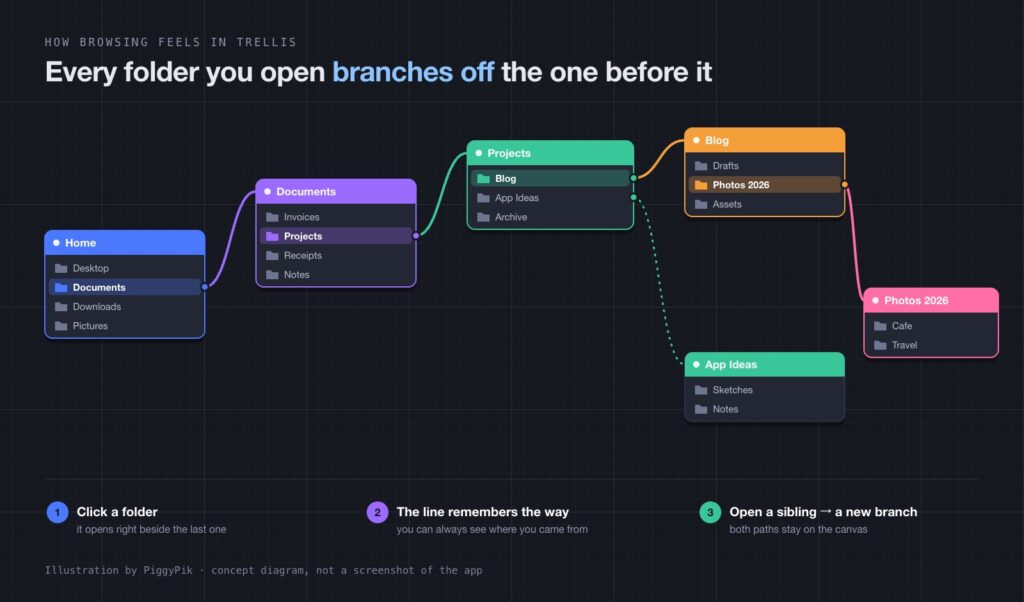
This is my favorite part. When you click a folder, the one you were in doesn’t disappear. The new folder opens right next to it, with a line connecting the two. Keep clicking and the path keeps growing, like a tree putting out new branches.
Because every step stays on screen, it’s easy to check which folders I passed through to reach the one I’m in. You don’t have to remember which parent folder you came from. The answer is drawn right there on the canvas.
All Your Folders on One Canvas
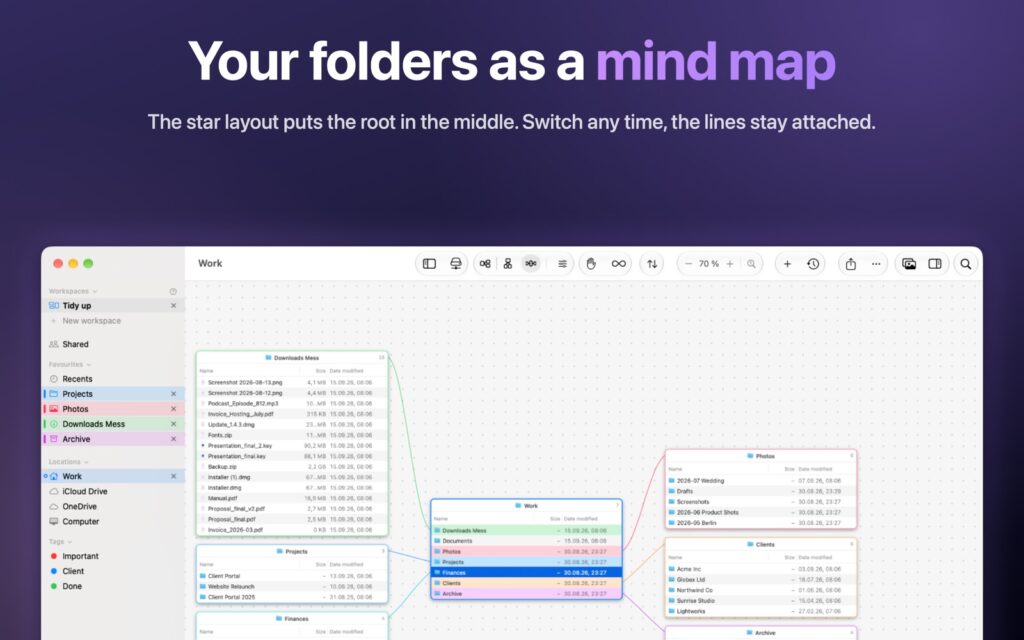
Because everything lives on one canvas, you can unfold several folders and take them all in at a glance. Instead of juggling windows, you zoom in and out and move around the canvas. If you spend a lot of time in folders, this alone makes Trellis worth a look.
It also changes how you move files. In the developer’s words:
Moving files means dragging, not copy, switch tab, paste.
Trellis official website
Keeping the Canvas Tidy
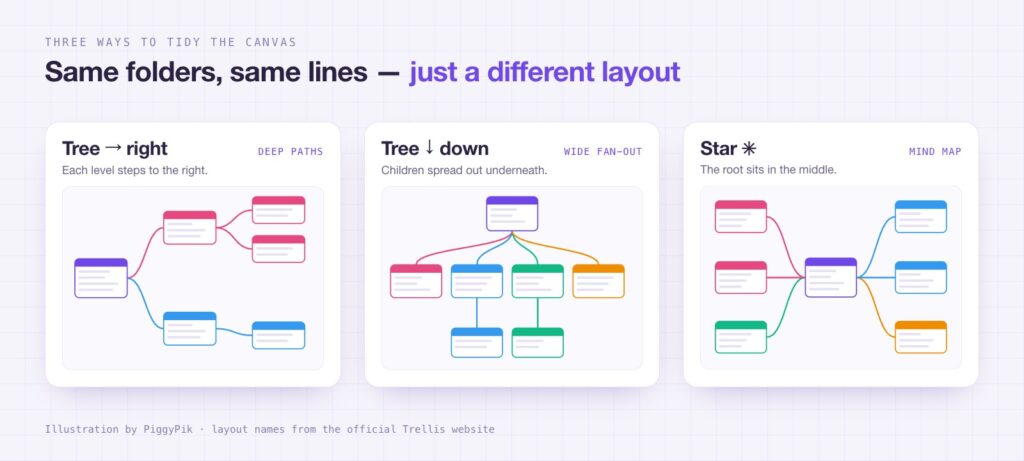
A canvas full of panes could get messy fast, but Trellis can line everything up neatly. The official website describes three layouts:
- Tree to the right: each level steps to the right, which suits deep paths.
- Tree downward: subfolders spread out underneath, which suits a folder with lots of children.
- Star: the root folder sits in the middle, like a mind map.
You can also arrange panes freely, and when you switch layouts, the lines stay attached. You can give the branches different colors, too, and choose a dot, grid or cross pattern for the canvas background.
Create and Delete Folders Right on the Canvas
You don’t have to leave the canvas to manage folders, either. You can create a new folder inside the one you’re viewing, right there on the canvas, and delete folders the same way. It’s a small touch, but it keeps you in the flow.
Good to know: Trellis comes from the Mac App Store, so it runs in Apple’s sandbox, a security feature that limits which files an app can reach. That’s why Trellis asks you to choose a folder to give it access to the first time you open it.
According to the support page, Full Disk Access is only needed for the Trash (opening it, emptying it and putting items back) and for the favorites in Finder’s sidebar.
More Features Worth Knowing
I’ve focused on the parts I liked most, but Trellis does a lot more. Here’s what the developer highlights on the official website and the App Store.
Folder Sizes, Instantly
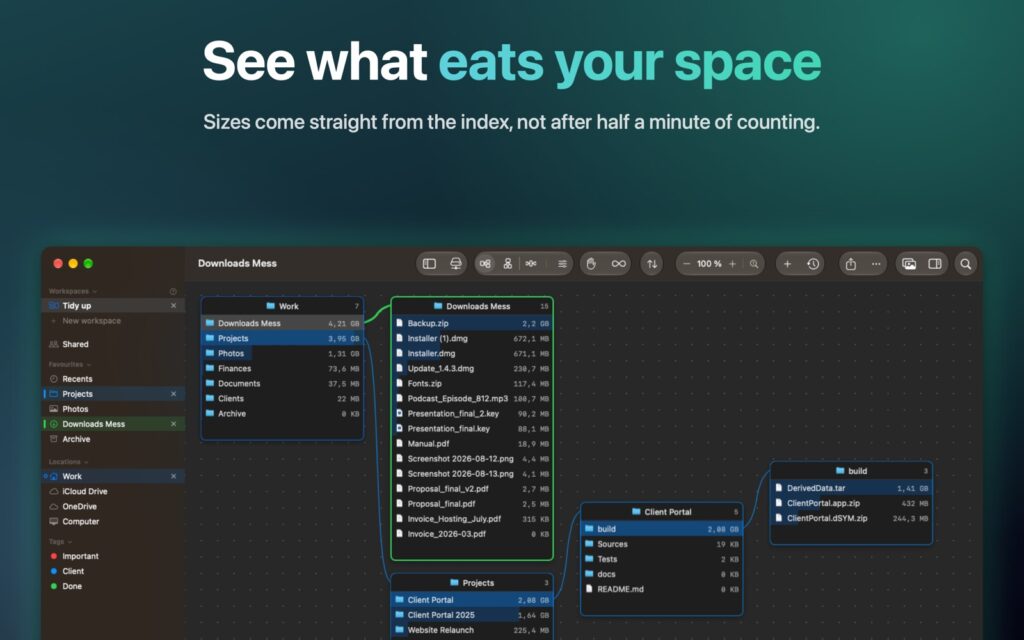
Trellis keeps its own index, stored on your Mac. Folder sizes come straight from that index, so there’s no waiting while they’re counted. Search, folder comparison and the size view all use the same database.
External Drives, Even When Unplugged
Trellis remembers the folder structure and previews of your external drives, and it can optionally keep the text inside PDFs, too. When you search, it tells you which drive to plug in. According to the App Store listing, it also shows each drive’s maker, model, connection type and serial number.
Compare Folders and Find Duplicates
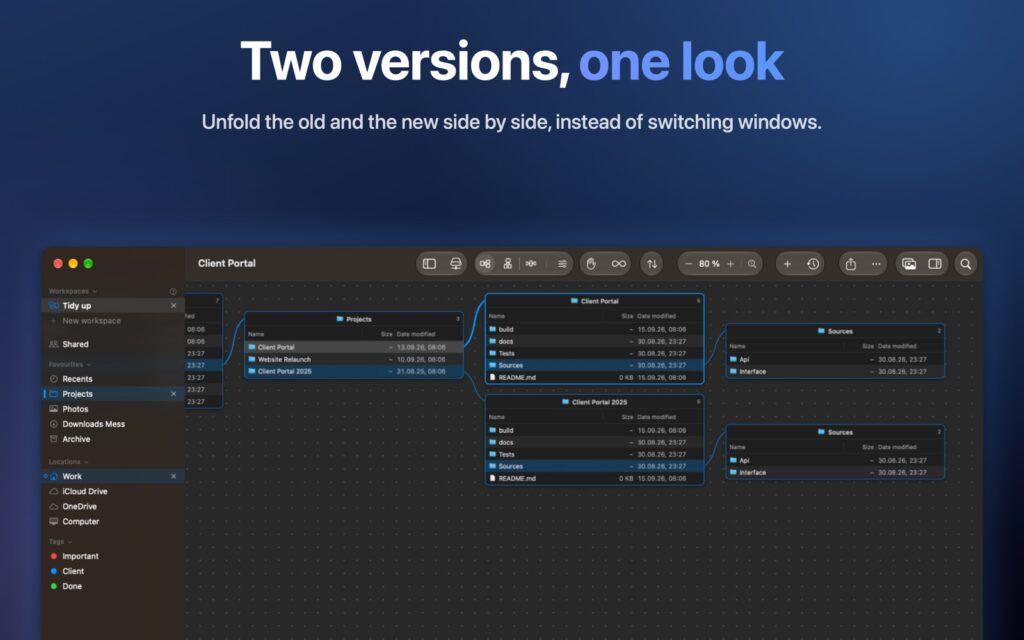
Put two folders side by side and Trellis marks the differences: green means a file exists on one side only, and orange means the name matches but the file is different. It keeps checksums (a kind of digital fingerprint for each file) to spot duplicates, and it can merge folders that share the same name.
Select Across Folders
You can Cmd⌘ + click files in different folders, then copy, move or rename them all at once, with a preview first and undo afterward. The official website points out that Finder can’t do this.
Gallery, Previews and Image Tools
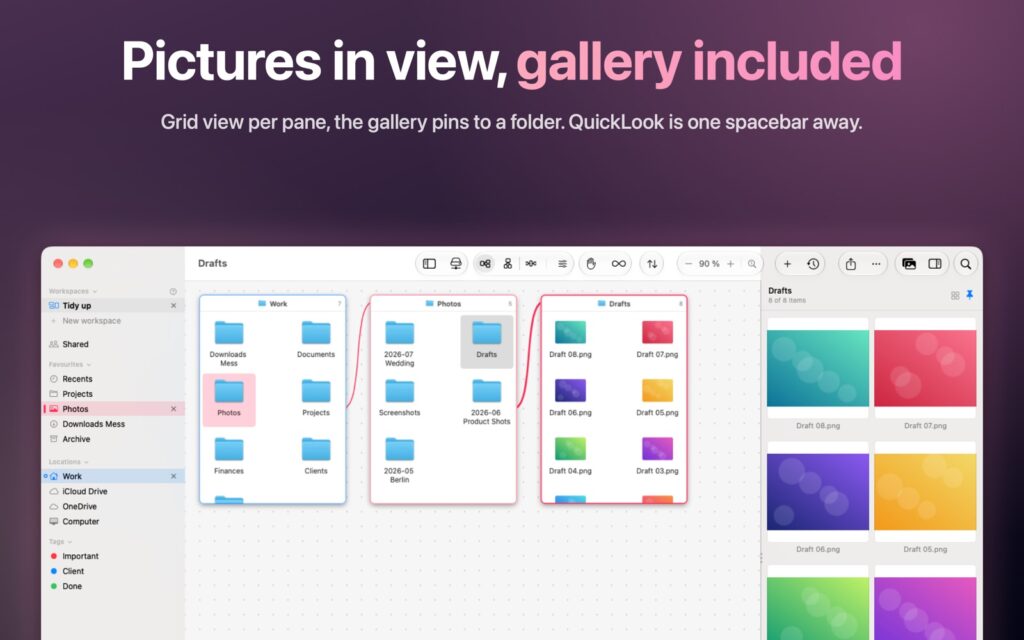
Each pane can switch to a grid view, you can pin a gallery to a folder, and Quick Look is one press of the Space bar away. According to the App Store listing, Trellis previews photos, videos, PDFs, Office documents and 3D models. Its image tools can convert, resize and shrink images, and they show you a preview first.
Batch Rename
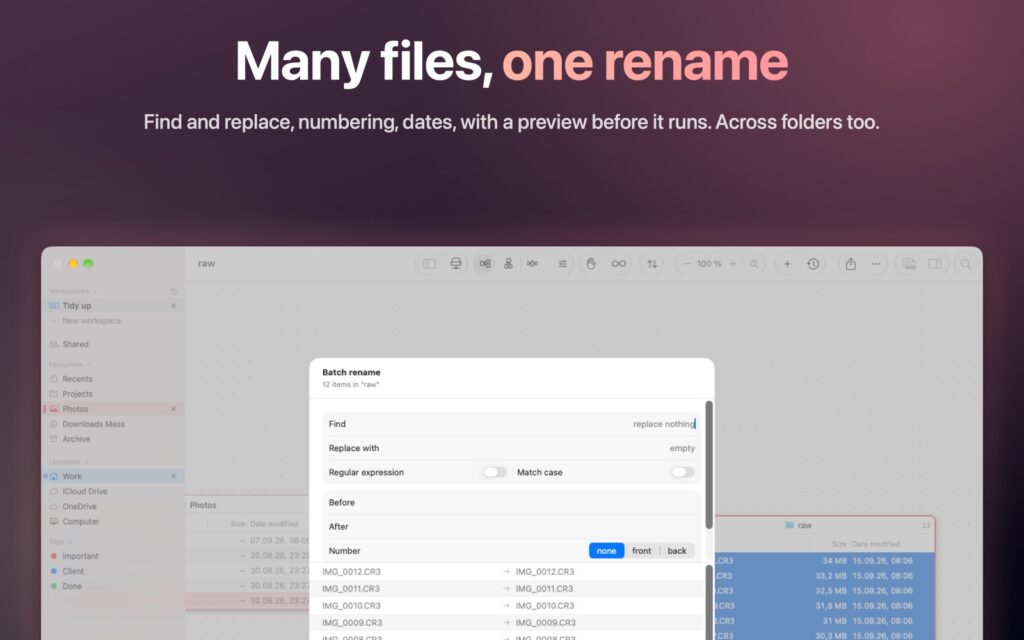
You can rename many files at once with find and replace, numbering and dates. You see a preview before anything changes, and it works across folders, too.
A Few More Extras
- Workspaces (which replace window tabs as of version 2.2), favorites and Finder tags
- Support for Dropbox, OneDrive, Google Drive and iCloud Drive folders, with no separate sign-in
- A look inside archives
- “Open in Trellis” in Finder, plus
trellis://links for the Shortcuts app
Version 2.0 also added Trellis’s own canvas engine for smooth zooming, copies that pick up where they left off after an interruption, and renaming that works just like it does in Finder.
Privacy
Trellis doesn’t ask you to create an account. The official website puts it plainly:
Trellis collects nothing, transmits nothing and has no account.
Trellis official website
Its index is just a file on your Mac, and Trellis can only reach the folders you give it. The App Store privacy label says the same thing: Data Not Collected.
Wrapping Up
Trellis takes something we all do every day, opening folders, and makes it visual. The Blueprint-like canvas caught my eye first, but my favorite part is how the branching path always shows where I’ve been. If you work with folders a lot, I think Trellis will be a really useful app for you.
If you enjoy small Mac utilities like this, you might also like my Tracer review, and you can find more picks in Mac Apps.
A Word to the Developer
There’s one thing I’d like to share after using Trellis.
When I have a lot of folders open on the canvas, I often need to move left and right to see them all. Right now, you can do that by clicking and dragging the canvas with the mouse. In my experience, though, it takes more effort than I expected, and it felt a little inconvenient.
In pro tools like Photoshop and Figma, you can hold down the Space bar to turn the cursor into a hand, then drag to move around the canvas. I think getting around in Trellis would feel much easier if it worked the same way.
Of course, the Space bar already opens Quick Look in Trellis, and for Mac users there’s hardly a more natural key for previewing files. So I know it isn’t an easy call. I’m curious to see how you’ll think it through and improve it.
Update History
Trellis keeps getting updates, so I have listed what changed in each version, newest first. Click a version to open or close it.
✦ v2.3October 15, 2026LatestArrange panes by hand and open any folder as a root
Trellis 2.3 came out on October 15, 2026. This update gives you more control over where panes sit on the canvas, and it makes drives and network shares more dependable.
What’s New in Trellis 2.3
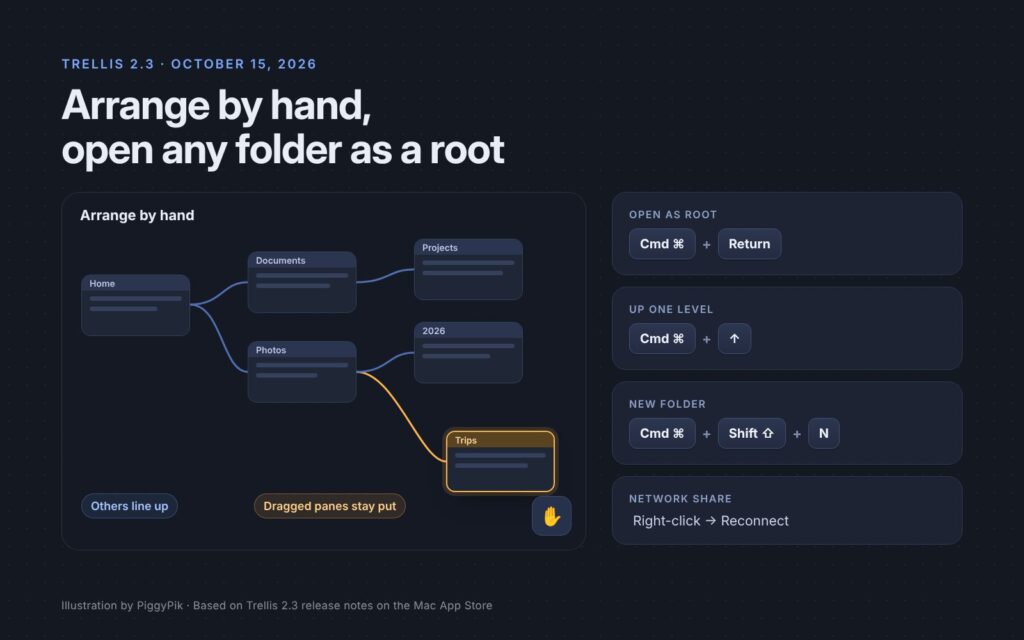
- Arrange by hand: Only the folders you drag stay where you put them, and everything else lines up behind its parent. Click the hand button to have Trellis arrange them automatically again.
- Open as Root: Right-click a folder and choose Open as Root, or press Cmd⌘ + Return. In the same menu, Open now opens the folder in Trellis, and Open in Finder sits just below it.
- Reconnect network shares: Reconnect a disconnected network share from its right-click menu.
- Finder-style shortcuts: Cmd⌘ + ↑ goes up one level, and Cmd⌘ + Shift⇧ + N creates a new folder.
- Sidebar: Places in the sidebar can be set to open only on a double-click.
- Help: The built-in help is now available in every language the app supports.
Fixes in 2.3
Network shares are now recognized even under another name or IP address of the server, and USB sticks and drives under another mount point, so your workspaces, colors and favorites follow them. Favorites on an unplugged drive stay instead of disappearing, cards in the built-in SD card reader count as external drives, and plugging in a slow card no longer makes Trellis hang briefly. Undo and Put Back also leave a file alone if it has been changed or replaced since.
✦ v2.2October 6, 2026A shortcut overview, workspaces and smoother zooming
Trellis 2.2 came out on October 6, 2026, less than a week after 2.1. This time, the focus is on the keyboard and on everyday polish.
What’s New in Trellis 2.2
- Shortcut overview: Hold Control⌃, or click the button in the sidebar, to see the keyboard shortcuts you can use.
- Type-to-select: Start typing a name to jump to that file or folder, just like in Finder.
- Faster pane control: Backspace closes a pane, and Cmd⌘ + R now works as a refresh shortcut.
- Workspaces instead of tabs: Cmd⌘ + T now opens a new workspace, and workspaces replace window tabs.
- Smoother movement: Zooming with the scroll wheel now glides, and rearranging panes feels smoother.
Trying Scroll Zoom Again With My Mouse
In 2.1, scroll zooming stuttered on my Logitech MX Master 4 (see v2.1). Trellis 2.2 made scroll-wheel zooming glide. I tried it again with the same mouse, and the stutter is gone. Zooming in and out with the scroll wheel now feels smooth.
The keyboard shortcuts still work just as well, so use whichever feels more comfortable.
Fixes in 2.2
The update also makes Trellis run more smoothly on slow drives such as SD cards and USB sticks, stops memory use from growing while it checks large files, and stops the message about an unplugged drive from showing up every time you open the app.
✦ v2.1October 1, 2026Space bar panning: the developer took my idea on board
Good news: I shared the idea above with the developer, who took it on board. Trellis 2.1, released on October 1, 2026, lets you grab the canvas by holding the Space bar and dragging, just like in Figma.
Trellis 2.1 also added zooming around the pointer with Cmd⌘ + scroll, a way to jump between panes with Option⌥ + the arrow keys, and new options for all of this under Settings > Layout.
How Space Bar Panning Works
The developer explained how the Space bar now handles both jobs. A quick tap still opens Quick Look, just like before. Hold it a little longer (around 100 milliseconds, though the exact delay was still being tested), and the cursor turns into a hand so you can drag the canvas with the left mouse button. If you prefer, you can switch panning to the middle, back or forward mouse button.
The developer also tried grabbing the canvas by pressing the left and right mouse buttons together, but it felt glitchy and didn’t work well. Along the way, Cmd⌘ + scroll zooming made it in too.
In daily use, I can now move around the canvas by holding the Space bar, and clicking and dragging still works as before. Use whichever feels more comfortable.
Zooming With My Mouse
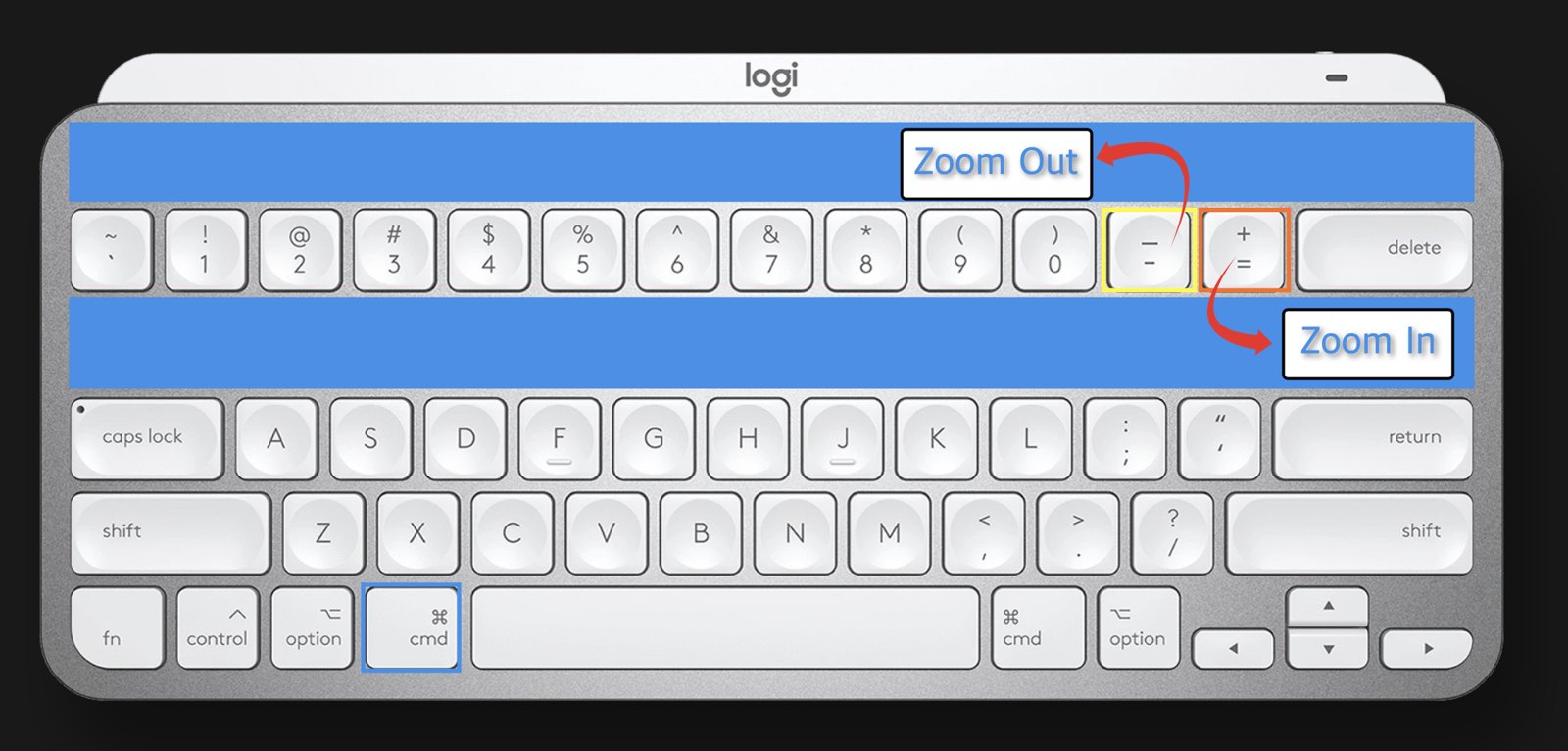
When Cmd⌘ + scroll zoom first arrived in 2.1, it didn’t feel smooth with my Logitech MX Master 4. I tried several Logitech settings, but zooming still stuttered.
So I switched to the keyboard shortcuts Cmd⌘ + Minus (−) and Cmd⌘ + Plus (+), and zooming was smooth and lively.
Before You Install
A few things are worth checking first:
- Requirements: macOS 15.0 or later, on Apple silicon or Intel Macs.
- Size: 9.5 MB.
- Languages: English, Danish, Dutch, Finnish, French, German, Italian, Norwegian Bokmål, Portuguese, Spanish and Swedish. There’s no Korean or Japanese yet.
- First launch: Trellis asks you to choose a folder to give it access to.
- Default app: Trellis can’t replace Finder as the default app for opening folders, because macOS reserves that for Finder. Use “Open in Trellis” in Finder instead.
How to Download and Install Trellis
Here’s what Trellis costs and how to set it up.
After the trial, everything stays readable. Only the actions that write to disk wait until you unlock the app.
Mac App Store
A one-time purchase, with no subscription
-
1Get Trellis
Click the button below to open Trellis’s page on the Mac App Store, then download it.
-
2Open Trellis
Once it’s installed, open Trellis from your Applications folder.
-
3Choose a folder
On first launch, Trellis asks you to choose a folder to give it access to. Pick the folder you want to see on the canvas.
-
4Open folders from Finder
macOS keeps Finder as the default app for opening folders, so use Open in Trellis in Finder instead.
Why choose a folder? Apps from the Mac App Store can only open the folders you allow, so Trellis asks you to pick one first.