I first came across Raycast for Mac in a YouTube video. I use keyboard shortcuts for almost everything, so an app that puts so much behind a single hotkey looked appealing right away.
I had been using the original version for a while, but when I checked recently, I found that a whole new Raycast had come out. So I updated to version 2.6.1, the latest at the time, and rewrote this post from scratch around it. I keep it updated as new versions come out, and you can find the current version under Before You Install.
In this post, I’ll walk through what Raycast is, what stood out to me in the new version, my own checklist for apps like this, and what’s worth knowing before you install it.
Update history
v2.8 (October 16, 2026, latest): Faster File Search and extensions, and a lighter start
v2.7 (October 9, 2026): Less memory use and the new Send to AI
What Is Raycast for Mac?
Raycast is a launcher for the Mac, made by a company of the same name. Its tagline is “Your shortcut to everything,” and the official website describes it as “a collection of powerful productivity tools all within an extendable launcher.”
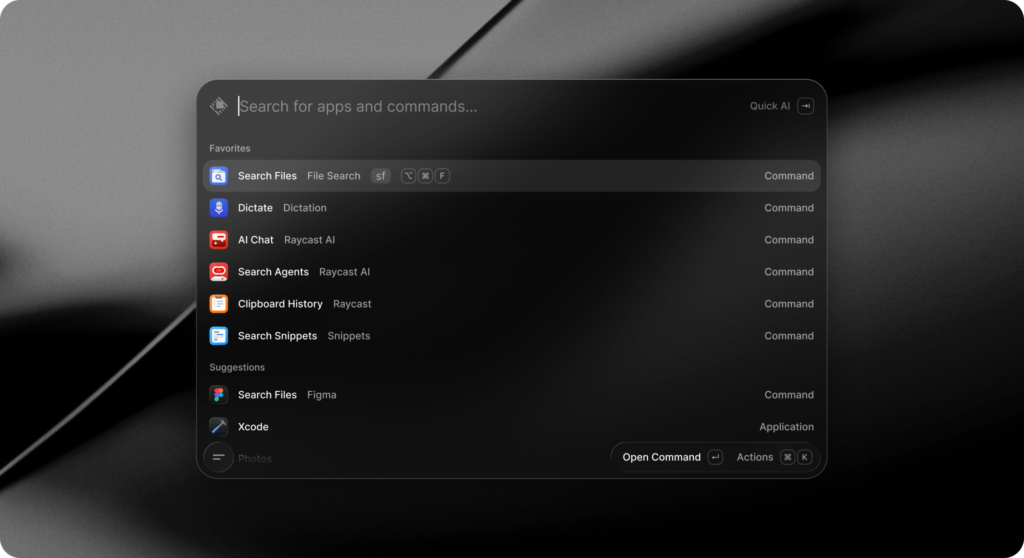
You press one hotkey, a search bar appears, and you type. From there you can open apps, find files, look back through what you copied, move windows, do quick math and run commands from thousands of extensions.
Raycast 2.0 came out of beta on August 25, 2026, and replaced the original app, which is now called v1. The interface was redesigned for the Liquid Glass look of macOS Tahoe, and the foundation underneath was rebuilt. There are also versions for Windows and iOS, but this post is about the Mac app.
First Impressions: An Onboarding That Shows, Not Tells
The first thing that stood out after updating was the onboarding. Instead of a wall of text, a Core Features screen plays short clips of what works out of the box, one after another: the app launcher, file search, the calculator, emoji, clipboard history, your schedule, notes, snippets, quicklinks and window management.
The text beside the clips keeps it simple: “Raycast is a powerful free launcher packed with loads of extras out of the box.” I liked that it shows rather than tells. Watching each feature in action for a few seconds made it easier to decide what to try first than reading a list would have.
Raycast says the app was redesigned for Liquid Glass “to fit right at home on your Mac.” That matches my impression. It looks like part of macOS rather than a separate tool sitting on top of it.
Built for People Who Live on Shortcuts
This is what drew me in from the start. The official website lists “Keyboard First” as one of Raycast’s core ideas, and version 2 adds even more for people like me:
- Hotkeys right where you are: You can give any command its own hotkey or alias straight from the Action Panel, without opening Settings first. Press Cmd⌘ + K on any item to open the Action Panel.
- More keys to work with: The new hotkey recorder accepts fn on its own and lets you assign the left and right modifier keys separately.
- Search inside Settings: Settings now has its own search, covering every extension, command and setting.
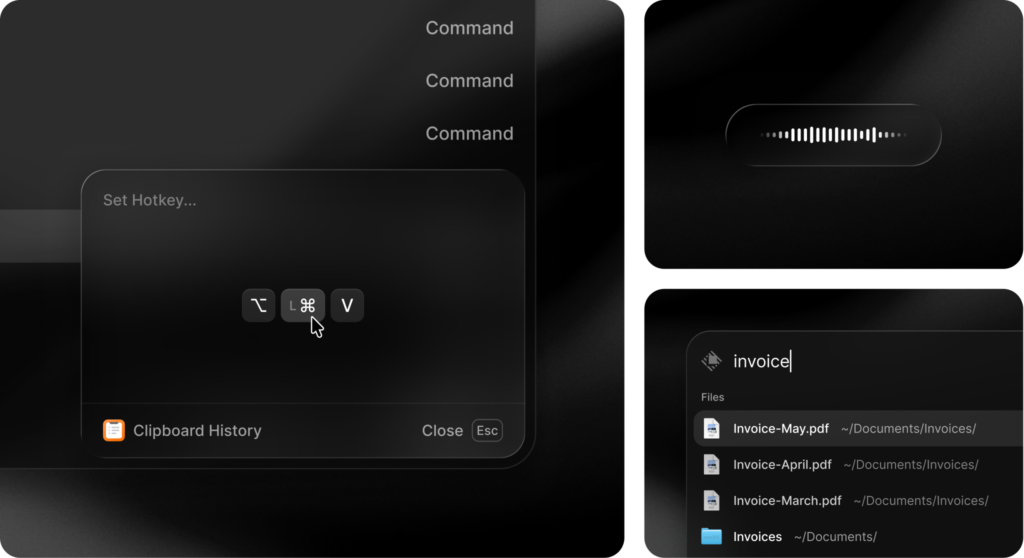
For me, that’s the real appeal. Anything I do more than a few times a day can get its own key.
What You Get for Free
Everything in this section is part of the free plan, with no time limit.
Apps and Files in One Search
Type the name of a file or folder, and it shows up right next to your apps and commands. You no longer need a separate command for file search. According to the Raycast manual, the file index is stored on your Mac and is never synced or uploaded to Raycast’s servers.
Clipboard History
Raycast keeps the text, images, files, links, emails and colors you copy, so something you copied earlier is still there when you need it. On the free plan, you can keep up to three months of history, and Pro adds longer options, all the way up to unlimited. Passwords and Keychain Access are excluded by default, and you can add other apps to that list.
Window Management
Commands like Left Half, Right Half, Maximize, Center and Next Display move and resize the window you’re using. Give the ones you use most a hotkey, and you won’t need a separate window manager. Creating your own window commands and layouts is a Pro feature.
Snippets, Quicklinks and the Calculator
Snippets turn a short keyword into longer text you type often. Quicklinks open a website or a search in one step. You can also type a calculation straight into the search bar and get the answer as you type.
Emoji, Notes and Your Schedule
Type : and an emoji name in Raycast’s text fields, such as AI Chat, Notes, Snippets and Quicklinks, to insert an emoji without leaving the keyboard. Raycast Notes gives you quick notes (five on the free plan), and My Schedule shows your upcoming calendar events.
Extensions
The Raycast Store has thousands of extensions, and they are free to install. They let you use your favorite tools without opening them. If you’re a web developer, you can also build your own with the Raycast extension API.
My Checklist for Apps Like This
When I try a new app like this, I look at a few things. Here’s how Raycast did:
- Does it fit the way I already work? Yes. I reach for shortcuts first, and Raycast is built around them, right down to giving any command its own hotkey.
- Does it show me something in a new way? Yes. Launchers aren’t new, but putting apps, files, clipboard history, windows and math behind one search bar changed how I think about a launcher. It’s less a way to open apps and more a place to start anything.
- Is it useful without paying? Yes. The core features and the extension store are free, with no time limit. AI, dictation and Cloud Sync are the parts you pay for.
- Does it handle my data with care? From what Raycast documents, yes. The file index stays on your Mac, and clipboard history skips Passwords and Keychain Access by default.
- Is it easy to get started? Mostly. The onboarding clips help a lot, but getting the most out of Raycast means taking some time to set up your hotkeys.
Raycast Pro: What Paying Adds
During onboarding, Raycast shows what Pro adds: Dictation, Cloud Sync, AI, Translator and Custom Window Management.
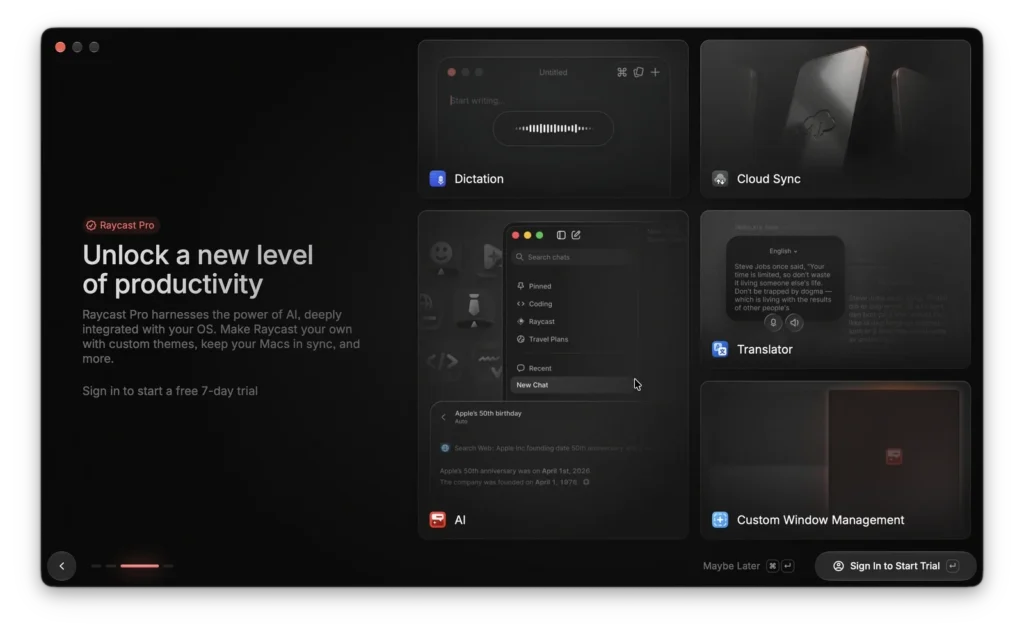
According to the pricing page, Pro includes Raycast AI (Quick AI, AI Chat, Agents, AI Commands and more) with monthly AI credits, along with Cloud Sync, Dictation, custom themes and unlimited notes. Dictation and AI Chat were free during the beta and have been part of Pro since 2.0.
New accounts can start a free 7-day Pro trial by signing in, with no credit card needed. You can also skip this step with Maybe Later and keep using the free features.
Update History
Raycast keeps getting updates, so I have listed what changed in each version, newest first. Click a version to open or close it.
✦ v2.8October 16, 2026LatestFaster File Search, quicker extensions and a lighter start
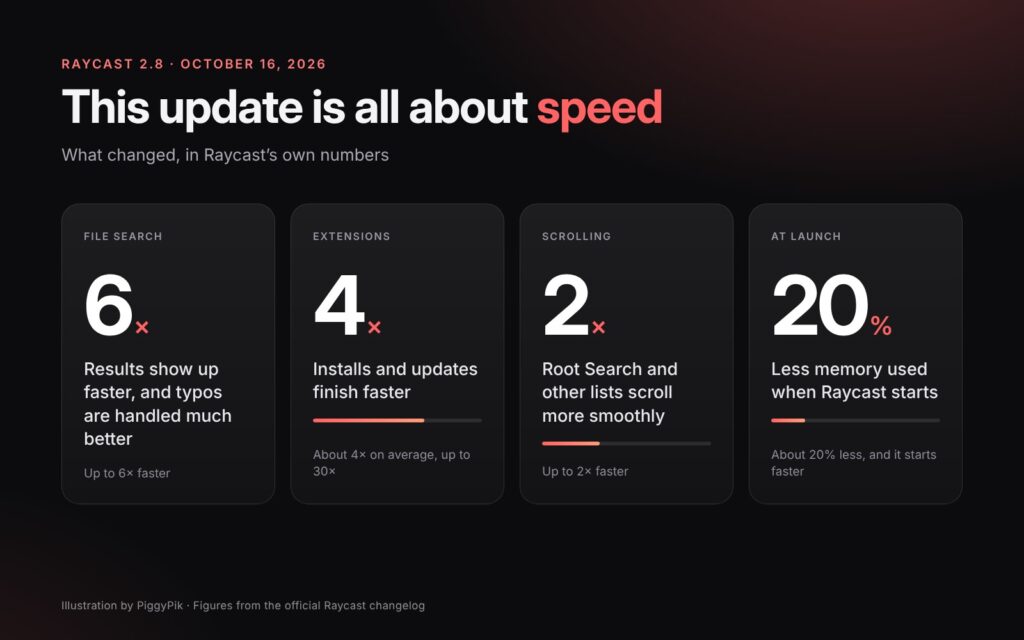
Raycast 2.8 came out on October 16, 2026, and this release is all about speed.
Faster Almost Everywhere
- File Search: Results show up to 6× faster, typos are handled much better, and indexing your files is faster and uses less CPU.
- Extensions: Installs and updates are about 4× faster on average, and up to 30× faster.
- Smoother scrolling: Root Search and other lists scroll up to 2× faster.
- Lighter at startup: Raycast uses about 20% less memory at launch and starts faster.
New in 2.8
- AI Skills: You can browse the skills your installed extensions provide in the AI settings.
- Calendar: You can now join Gong meetings.
- Emoji & Symbols: Greek letters have been added.
- Notes: Cmd⌘ + click on a parent to-do now toggles all of its nested to-dos.
Other Changes Worth Knowing
- When you use local AI models, images you attach now stay on your Mac if Cloud Sync or AI Chat History sync is turned off.
- Raycast now follows the HTTP_PROXY, HTTPS_PROXY and NO_PROXY settings for all of its traffic.
- The updater no longer installs an update automatically while Dictation or AI agents are running in the background.
- On macOS 27, Switch to Previous/Next Space without animation no longer flickers or fails.
- Many AI Chat issues have been fixed, including the window freezing while a very long list streams in.
✦ v2.7October 9, 2026Uses less memory and adds Send to AI
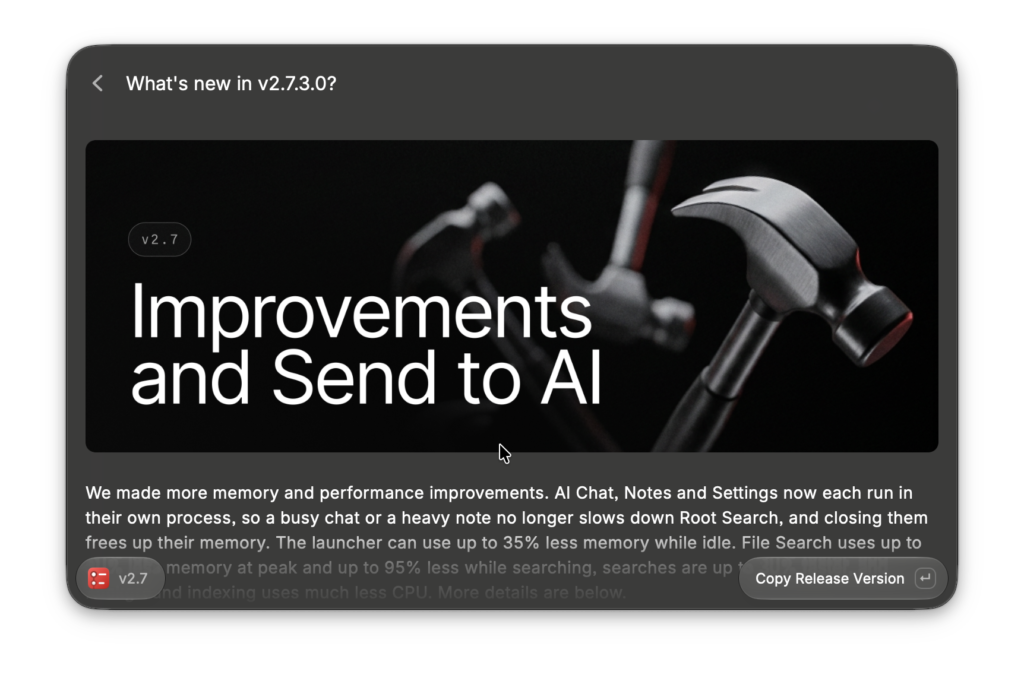
Raycast 2.7 came out on October 9, 2026, and I’ve since updated to 2.7.3 on my Mac. This release focuses on memory and speed, and it adds a new way to hand whatever is on your screen to AI Chat.
Lighter and Faster
- AI Chat, Notes and Settings now each run in their own process. A busy chat or a heavy note no longer slows down the main search, and closing them frees up their memory.
- The launcher uses up to 35% less memory while it sits idle.
- File Search uses up to 80% less memory at its peak and up to 95% less while searching. Searches are up to 30% faster, and background indexing uses much less CPU.
Send to AI
With Send Element to AI, you hover over anything on screen, such as a paragraph, an image or a button, and click to send it to AI Chat. Send Window to AI sends a whole window instead. Raycast suggests giving Send Element to AI its own hotkey, which fits right in with how I use Raycast. AI Chat is part of Raycast Pro, so you’ll need Pro or the free trial to use these.
Other Changes Worth Knowing
- Clipboard History can now save items copied on your iPhone or iPad as soon as they arrive, instead of waiting until you paste them. You can turn this on in the Clipboard History settings.
- Search results now favor complete words and exact title matches, and apps rank higher when results are otherwise equally relevant.
- Page Up and Page Down now work in lists and grids.
- Text you type right after opening Raycast with a hotkey is no longer lost, and the global hotkey always opens the main search instead of the last command you used.
- Several memory leaks are fixed.
A Word to the Raycast Team
Thank you for keeping the launcher, clipboard history, window management and extensions free. It makes Raycast easy to recommend to anyone. The new onboarding clips were a nice touch, too. They made it easy to see what to try first.
Wrapping Up
Raycast caught my eye in a YouTube video because I use shortcuts so much, and version 2 leans even further in that direction. If you also reach for the keyboard first, the free version is a good place to start. Set up hotkeys for the few things you do most, and see whether it sticks.
If you enjoy small Mac utilities like this, you might also like my Trellis and Tracer reviews, and you can find more picks in Mac Apps.
Before You Install
A few things are worth checking first:
- Requirements: macOS Tahoe on an Apple silicon Mac. Intel Macs and older versions of macOS are supported by the original v1 app only.
- Latest version: 2.8, released on October 16, 2026.
- Permissions: File search asks to scan your home folder on first launch. You can choose individual folders or grant Full Disk Access instead. Window management needs Accessibility access.
- Coming from v1: Raycast guides you through the update, and you can import your v1 data during onboarding. Raycast recommends updating v1 to at least v1.104.16 first, and some permissions may need to be granted again.
- Other platforms: Raycast is also available for Windows and iOS.
How to Download and Install Raycast for Mac
There are two ways to install Raycast. Pick the one that suits you.
The higher tiers, Plus and Max, are $20 and $50 per month. Verified students get 50% off Pro.
Option 1: Homebrew
The fastest way if you already use Homebrew
brew install --cask raycastPaste it into Terminal and press Return, and the install is done. Raycast keeps itself up to date after that.
On an Apple silicon Mac running macOS Tahoe or later, Homebrew installs Raycast 2. On older versions of macOS and on Intel Macs, it installs the last v1 release.
Option 2: Download From the Website
Install from the app file, no Terminal needed
-
1Download Raycast
Click the button below to download Raycast for Mac from the official website.
-
2Move it to Applications
Open the downloaded file and drag Raycast into your Applications folder.
-
3Open Raycast and follow the onboarding
Open Raycast from Applications, and the onboarding walks you through the setup. If you sign in, new accounts get a 7-day Pro trial.
-
4Allow the permissions it asks for
On first launch, file search asks to scan your home folder. You can pick individual folders or grant Full Disk Access instead. To use window management, turn on Raycast here:
System Settings›Privacy & Security›Accessibility
Why the permissions? File search has to read your folders to find files, and window management needs this access to move and resize other apps’ windows.
Good to know: If you want to open Raycast with Cmd⌘ + Space, first go to System Settings → Keyboard → Keyboard Shortcuts → Spotlight and uncheck Show Spotlight search. Then set Cmd⌘ + Space as your Raycast hotkey.