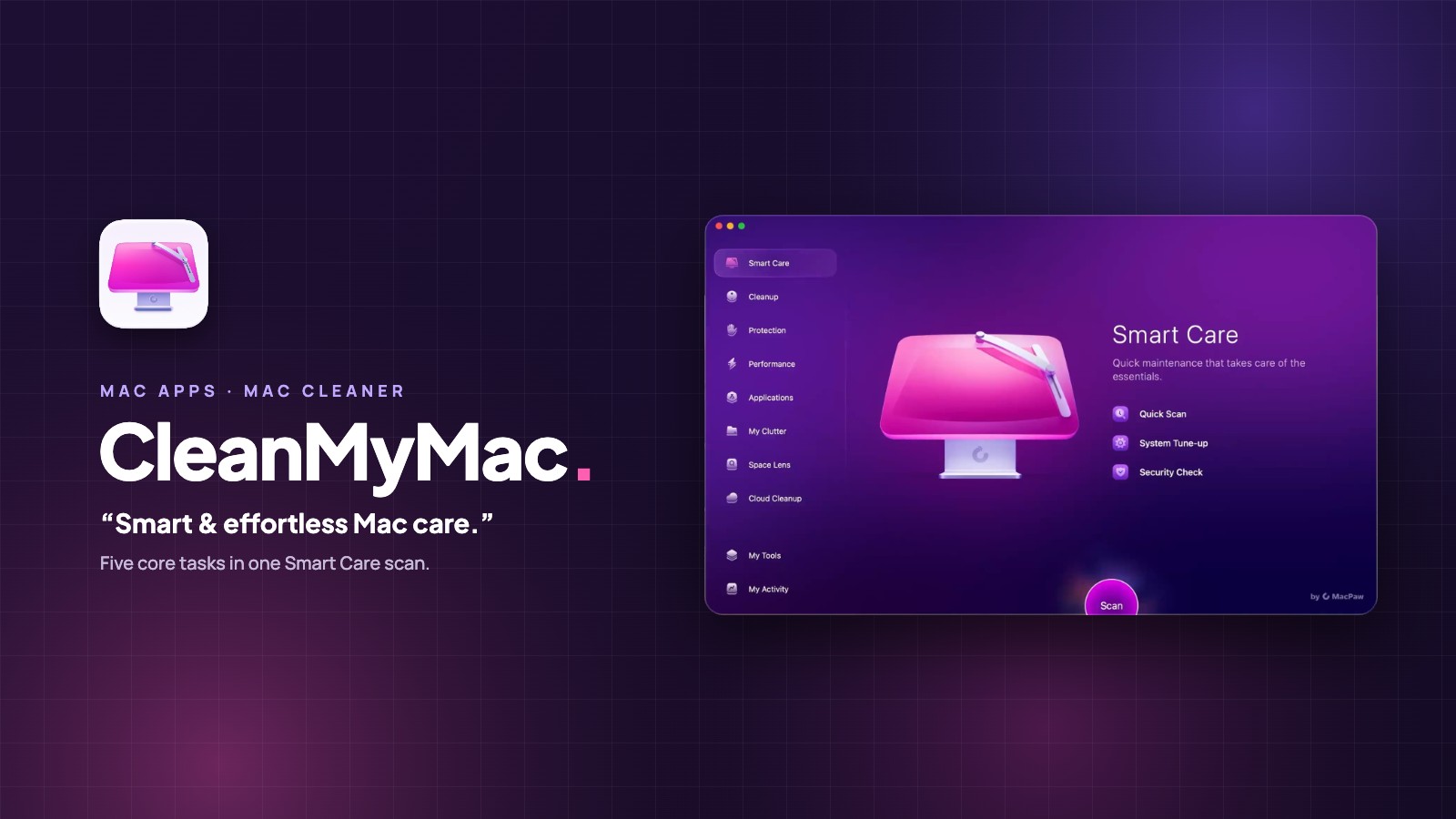
I found CleanMyMac for Mac while looking for an app to help with my Mac’s storage. I wanted something that could show me what was taking up space and clear it out safely, without me digging through folders one by one. I ended up buying it on the Mac App Store as a one-time purchase, and the feature I open most is Smart Care.
In this post, I’ll walk through what CleanMyMac is, how Smart Care works, what the other tools do, and what’s worth knowing before you install it.
Update history
v5.7.2 (October 15, 2026, latest): Browser Care, a new Chrome extension
What Is CleanMyMac?
CleanMyMac is a Mac cleaner and maintenance app made by MacPaw, the company behind Setapp and The Unarchiver. On its website, MacPaw sums it up as “Smart & effortless Mac care,” and describes an app that handles junk, duplicates, malware and performance issues in one place.
A Mac cleaner? A Mac saver.
CleanMyMac official website
The app is notarized by Apple, and it’s split into a handful of modules in the sidebar: Smart Care, Cleanup, Protection, Performance, Applications, My Clutter, Space Lens and Cloud Cleanup. At the time of writing, the latest version on MacPaw’s release notes was 5.7.1, released on October 1, 2026. Version 5.7.2 followed on October 15, 2026 (see below).
First Impression: Every Module Has Its Own Color
The first thing I noticed was how colorful it is. Each module has its own color and a large 3D icon, so even before I read anything, I could tell which part of the app I was in. For an app that deals with junk files and maintenance, it felt surprisingly friendly.
Smart Care: One Scan, Five Jobs
Smart Care is where CleanMyMac starts. You press Scan once, and it runs several modules in a row and then suggests what to do. Nothing happens until you approve it.
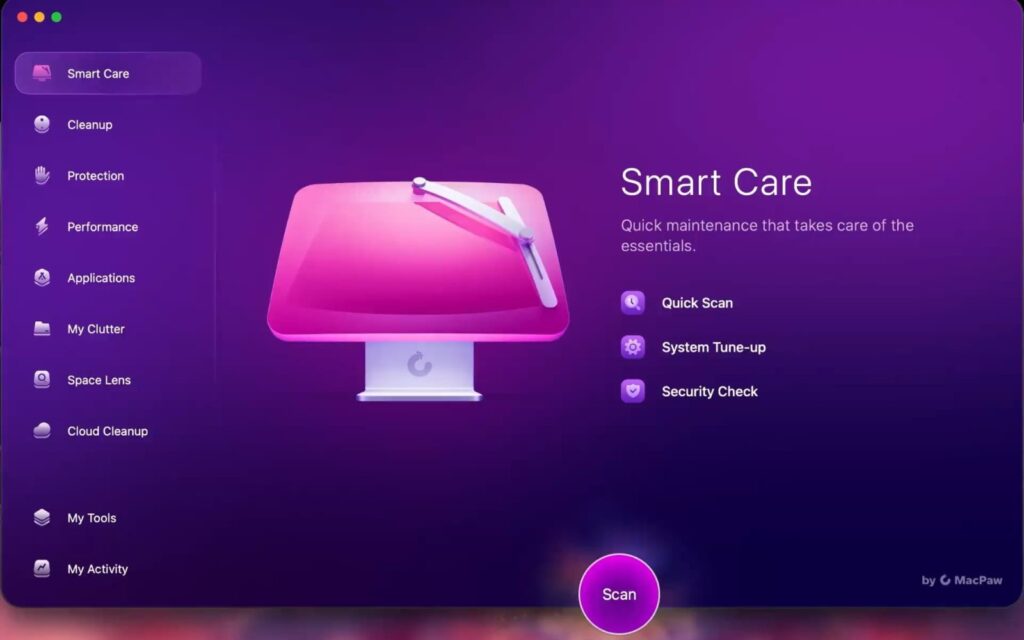
According to MacPaw’s guide, one Smart Care scan covers five areas:
- Cleanup: Looks for system junk such as log files, cache files and broken login items, and also checks mail attachments and the Trash.
- Protection: Runs a quick malware check. Any threats it finds are selected for removal.
- Performance: Suggests maintenance tasks, such as running maintenance scripts and flushing the DNS cache.
- Applications: Recommends updates for your apps. System apps and macOS updates aren’t included.
- My Clutter: Looks for duplicate files in your Downloads folder.
You Review Everything Before It Runs
When the scan finishes, the results appear as tiles: data you can remove, threats, maintenance tasks, app updates and duplicates. Everything is selected by default, but you can uncheck any tile, or click Review to see exactly what’s inside before you press Run.
This is the part I like most. MacPaw says CleanMyMac doesn’t delete any user files or app data unless you choose to, and it relies on a Safety Database built over many years to avoid cleaning the wrong things. If there’s a module you never want Smart Care to touch, you can turn it off under Settings › Scanning.
In my case, I run Smart Care whenever my Mac starts to feel full, check the Cleanup tile first, and then let it run. It saves me from hunting for caches and leftovers by hand.
The Other Tools Worth Knowing
Smart Care handles the routine, but each module can also be opened on its own when you want to go deeper.
Cleanup
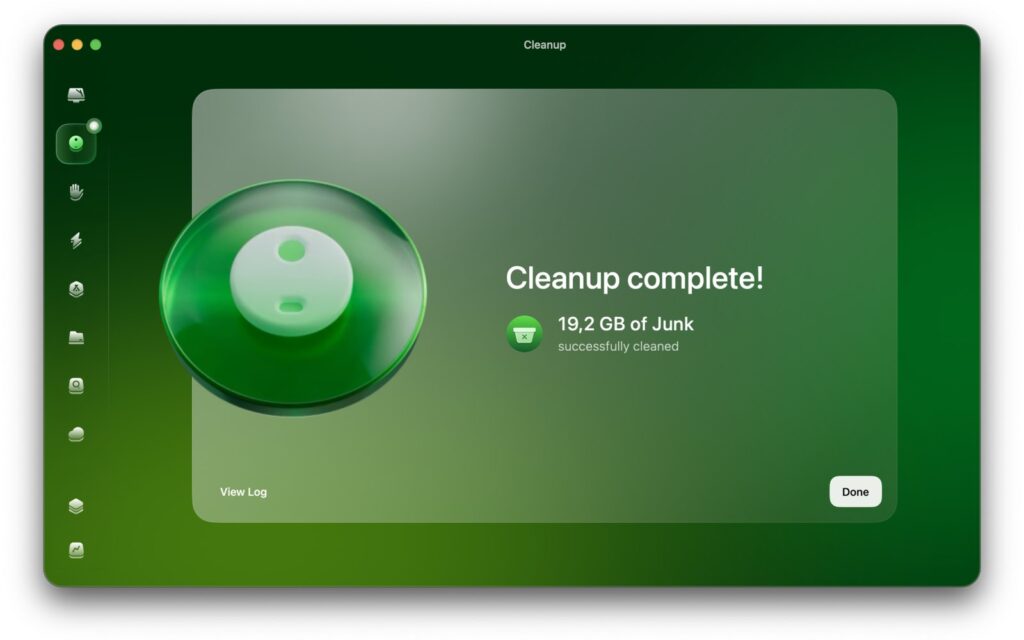
Cleanup clears hidden system junk and outdated files to free up space. When it finishes, it tells you how much it removed.
Protection
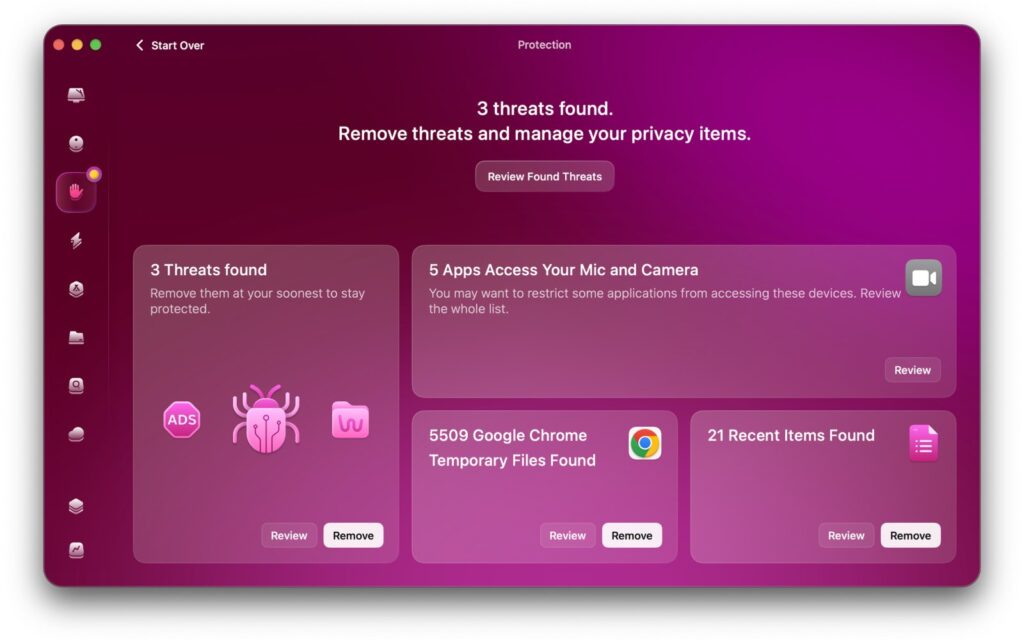
Protection scans for malware hidden in seemingly harmless software and removes it. It also points out privacy items, such as apps that can access your microphone and camera.
Performance
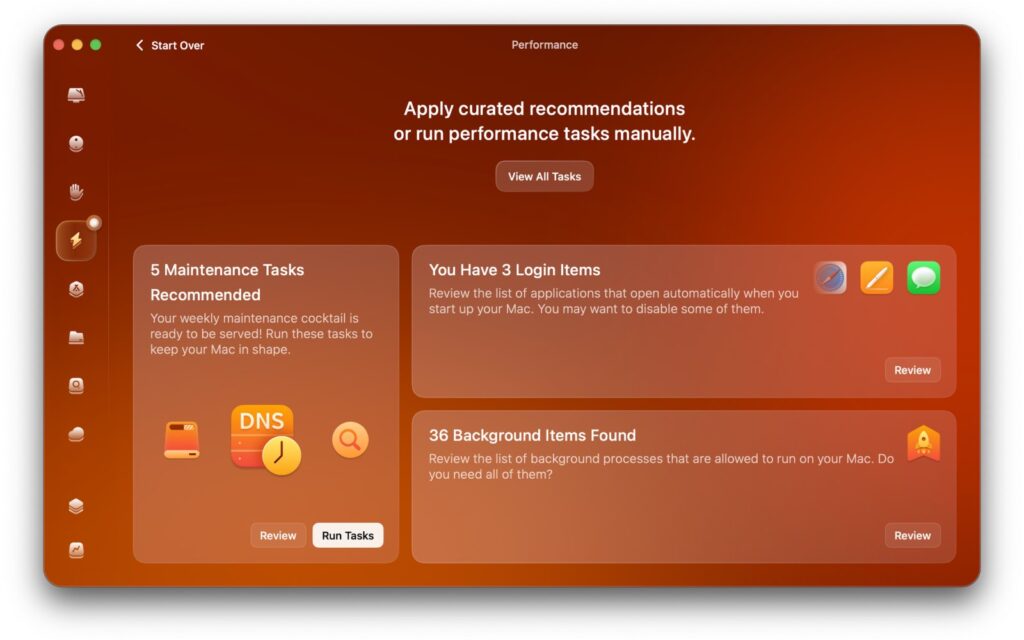
Performance groups maintenance tasks with the apps that open when you log in and the processes that run in the background, so you can decide which ones you really need.
Applications
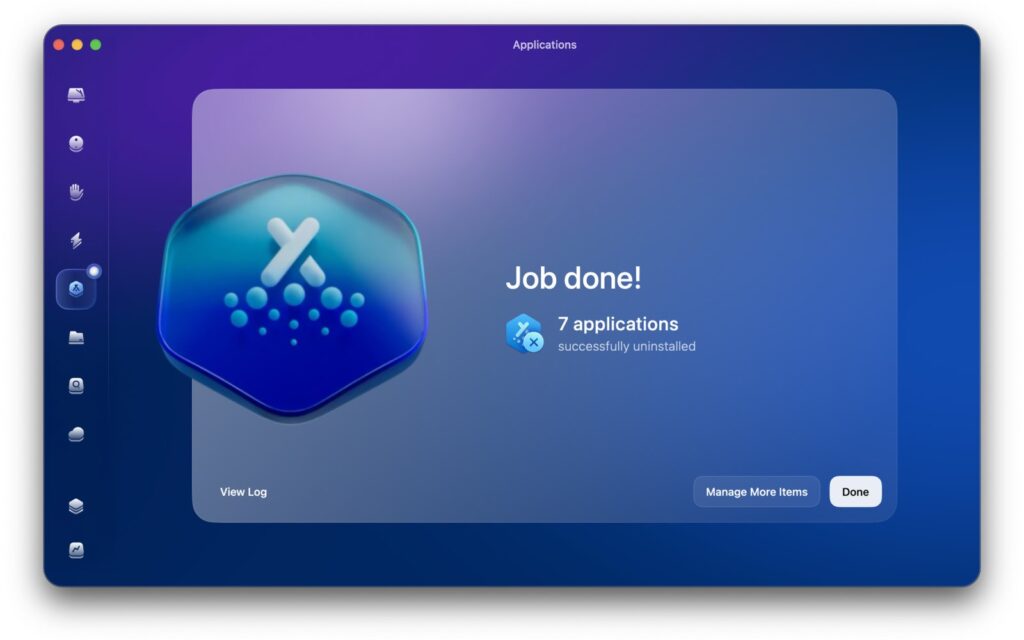
Applications removes apps together with their leftover files, and it can update the apps you have installed. Since version 5.5.5, it scans in the background, so you can start reviewing apps, leftovers and installers before the scan finishes.
My Clutter and Space Lens
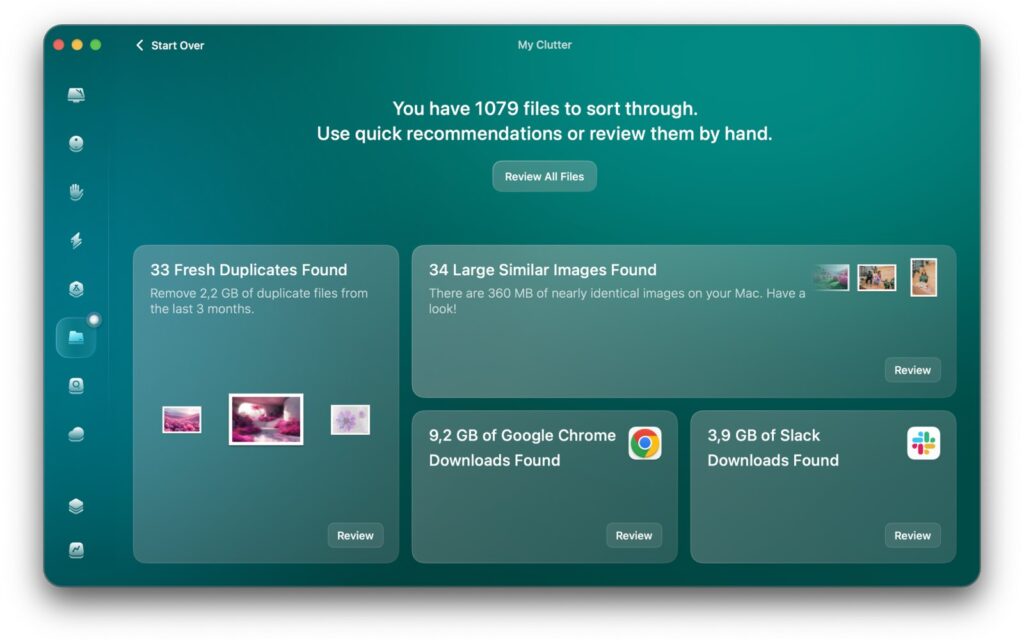
My Clutter finds duplicates, similar photos and large or forgotten files. Space Lens draws your storage as a bubble map with the largest folders first, which makes it easy to see where your space went.
Cloud Cleanup
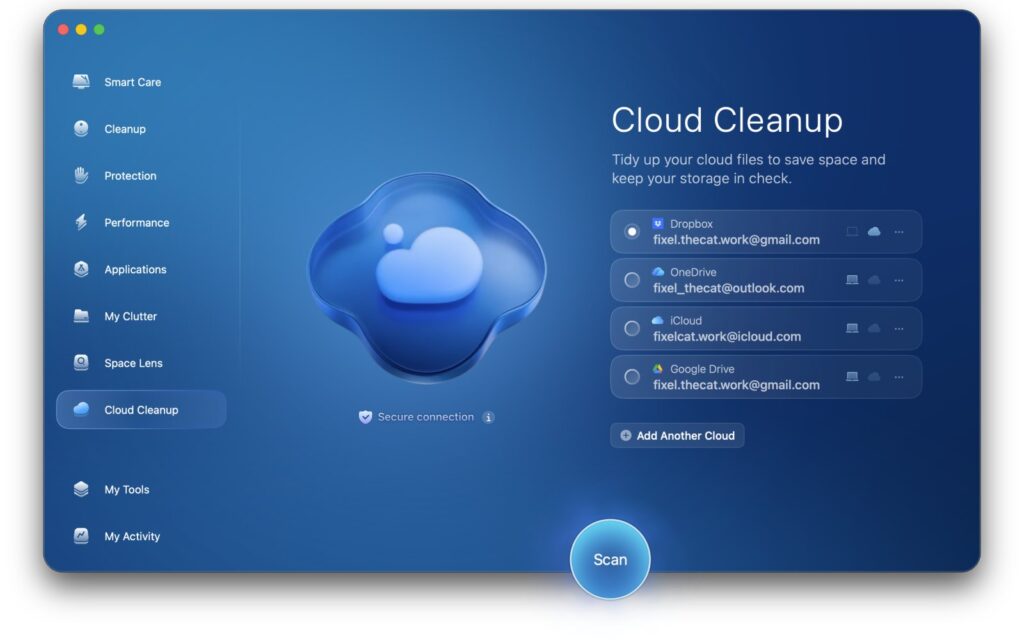
Cloud Cleanup shows large files in iCloud Drive, Google Drive, OneDrive and Dropbox. You can delete files, remove synced copies from your Mac and the cloud, or unsync them.
What’s New in Recent Versions
CleanMyMac gets updated often. These are the main additions from this year’s release notes:
- My Activity (5.4.0): A dashboard that shows your storage and cloud cleanup progress, protection insights and time saved.
- My Tools (5.5.0): A hub where you can pin the tools you use most and build your own sets of actions.
- Notification Center (5.6.0): Product news, offers and other messages are collected behind a bell icon, so you can check them later.
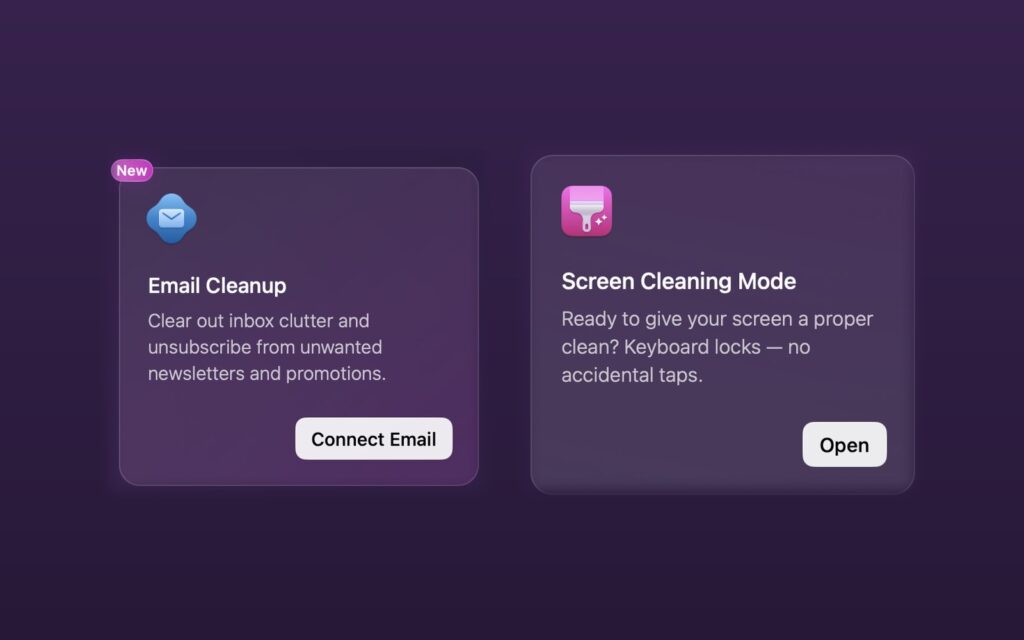
- Email Cleanup for Gmail (5.7.0): Connect your Gmail account to find newsletters, promotions, spam and unneeded drafts, then unsubscribe, archive or delete them.
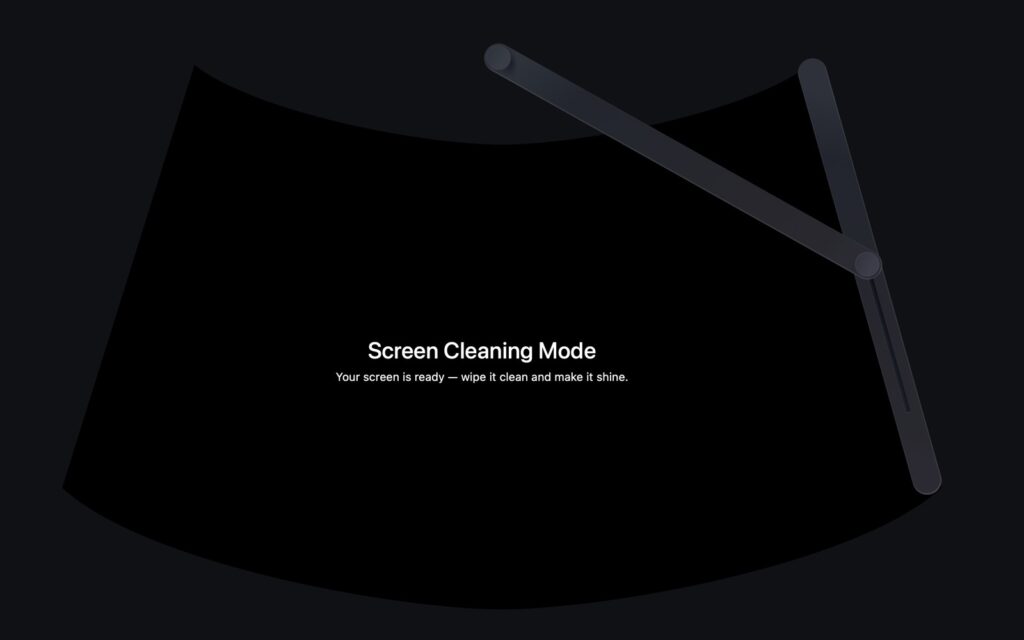
- Screen Cleaning Mode (5.7.1): Locks the keyboard and trackpad for two minutes while you wipe the screen. You can start it from My Tools or the CleanMyMac menu.
- Browser Care for Chrome (5.7.2): A Chrome extension for managing tabs. More in the update history below.
Both Email Cleanup and Screen Cleaning Mode already appear in the App Store version I use, under My Tools.
My Checklist for Apps Like This
When I look at a cleaning app, these are the things I check:
- Does it show me what it will delete? Smart Care lets me review every tile before anything runs.
- Can I trust it with my files? It’s notarized by Apple and doesn’t remove user files unless I choose to.
- Does it actually help with storage? Cleanup, My Clutter and Space Lens cover the reason I went looking in the first place.
- Does it give me a new way to look at my Mac? Seeing my storage as a bubble map in Space Lens changed how I think about where my space goes.
Update History
CleanMyMac keeps getting updates, so I have listed what changed in each version, newest first. Click a version to open or close it.
✦ v5.7.2October 15, 2026LatestBrowser Care, a new companion for Chrome
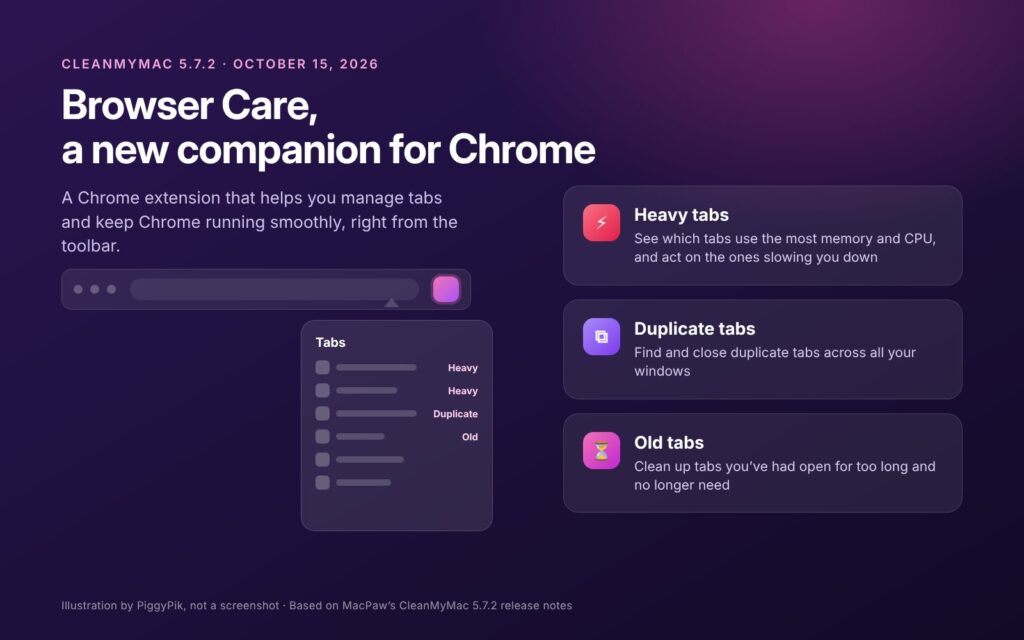
CleanMyMac 5.7.2 came out on October 15, 2026. It adds Browser Care, a Chrome extension that helps you manage tabs and keep Chrome running smoothly, right from the toolbar.
What Browser Care Does
- Shows which tabs use the most memory and CPU, so you can act on the ones slowing you down.
- Finds and closes duplicate tabs across all your windows.
- Cleans up tabs you’ve had open for too long and no longer need.
MacPaw had listed browser extensions for Safari and Google Chrome among the features it is working on, and Chrome comes first. The update also fixes some minor issues and known crashes.
Wrapping Up
I went looking for a way to free up storage, and CleanMyMac turned that into a single Scan button. What I appreciate most is that Smart Care never rushes me: it shows what it found, lets me look inside each tile and waits for me to press Run. If your Mac is running low on space and you’d rather not dig through folders yourself, I think CleanMyMac is worth trying.
If you enjoy Mac utilities like this, you might also like my Trellis review, and you can find more picks in Mac Apps.
A Word to the MacPaw Team
Thank you for making maintenance feel this calm. Being able to review every result before anything runs is what made me trust CleanMyMac with my files. I was also glad to see new tools like Email Cleanup and Screen Cleaning Mode show up right away in the App Store version I use.
App Store or MacPaw Store?
CleanMyMac is sold in three places: the MacPaw Store, the Mac App Store and Setapp. They aren’t exactly the same app. MacPaw explains that the App Store edition has fewer features because of Apple’s review guidelines.
For example, the App Store edition doesn’t include macOS updates, App Store updates, Protection Monitor or most maintenance tasks such as flushing the DNS cache or reindexing Spotlight. Core tools like malware removal, the uninstaller, Space Lens, Cloud Cleanup and My Clutter are available in all three.
Before You Install
A few things are worth checking first:
- Requirements: macOS 11 Big Sur or later. CleanMyMac doesn’t work on macOS Catalina 10.15 or earlier.
- Size: 320 MB, according to MacPaw.
- Display: At least 1200 × 800.
- Languages: English, Dutch, French, German, Italian, Japanese, Korean, Polish, Portuguese, Simplified Chinese, Spanish and Ukrainian.
How to Download and Install CleanMyMac
There are three ways to install CleanMyMac. If you want every feature, choose Homebrew or the MacPaw website, because the App Store edition has fewer features.
You can also pay $9.95 per month or $119.95 once, and there are plans for 2 and 5 Macs. A one-time purchase includes updates for your current major version, and the next major version is a separate, discounted purchase. App Store prices depend on your country.
Option 1: Homebrew
The fastest way if you already use Homebrew
brew install --cask cleanmymacPaste it into Terminal and press Return, and the install is done.
After it’s installed, follow steps 3 and 4 of Option 2 to finish the setup.
Option 2: Download From the MacPaw Website
Install from the app file, no Terminal needed
-
1Download CleanMyMac
Click the button below to download CleanMyMac from MacPaw’s official website. You can try it free for 7 days.
-
2Move it to Applications
Open the downloaded file and drag CleanMyMac into your Applications folder.
-
3Run your first scan
Open CleanMyMac, select Smart Care and click Scan. During this first scan, CleanMyMac registers its components with macOS.
-
4Allow Full Disk Access
Open this location, turn on CleanMyMac and confirm with Touch ID or your password.
System Settings›Privacy & Security›Full Disk AccessYou can also get there from Assistant in CleanMyMac by clicking Allow Access.
Why Full Disk Access? According to MacPaw, CleanMyMac can’t scan every area of your Mac for junk files or malware without it.
Option 3: Mac App Store
Buy through your Apple account
Click the button below to open CleanMyMac’s page on the Mac App Store.
The App Store edition has fewer features because of Apple’s guidelines. The differences are covered above.